
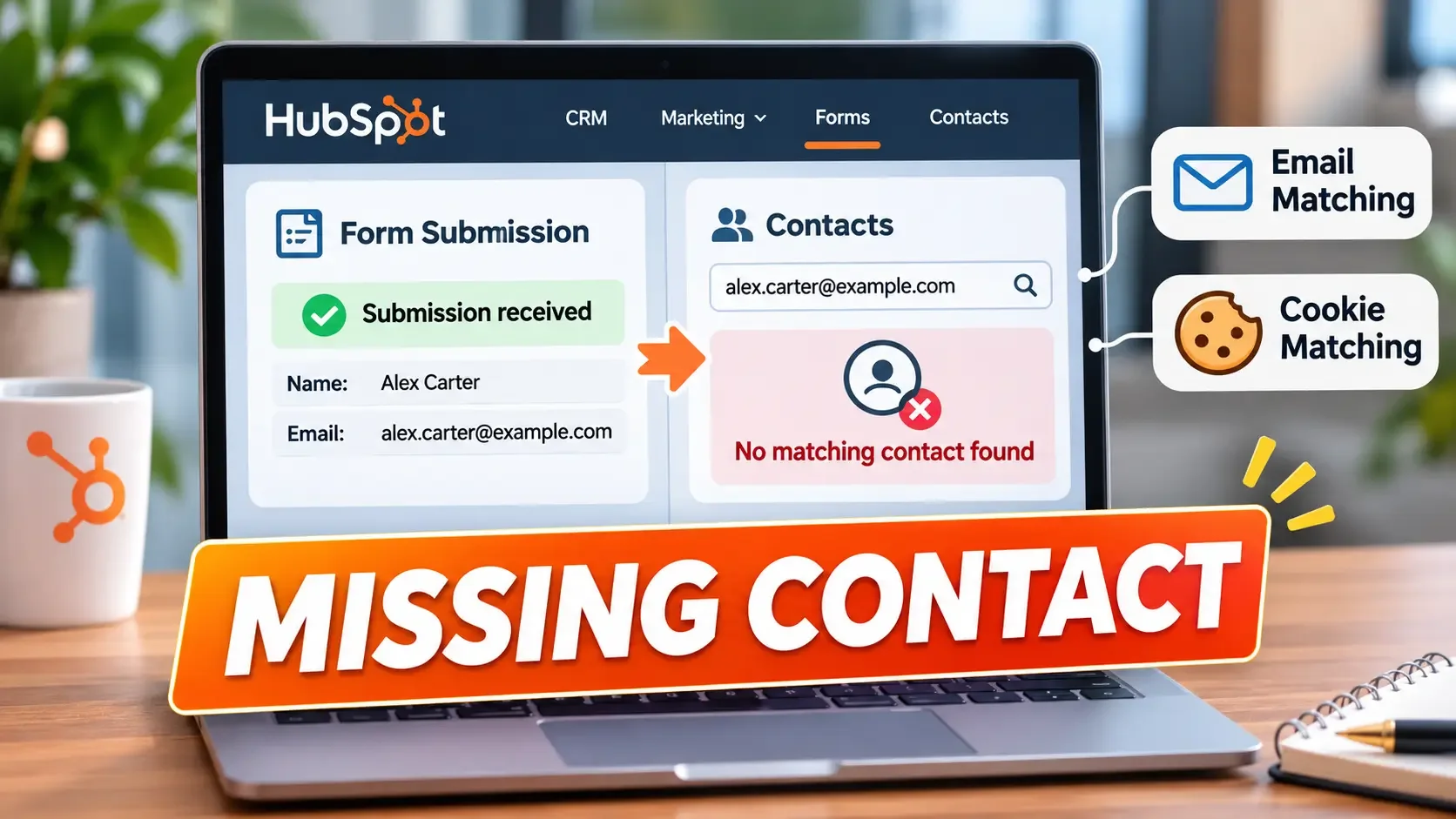
A HubSpot form can record a successful submission without creating the new CRM contact you expected. The visitor completes the form but searching the contacts database does not reveal a new record.
First, check whether HubSpot associated the submission with an existing contact. HubSpot normally updates matching contacts instead of creating duplicates. If no matching contact exists, the problem may involve the Email field, browser cookies or contact-creation settings.
The correct solution depends on where the submission was recorded and how HubSpot identified the visitor. Checking those details first helps prevent duplicate records and unintended changes to customer information.
Check the Form Submission
Before changing any settings, confirm that HubSpot received the submission. This helps distinguish a contact-creation problem from a form that never successfully recorded the visitor's information.
Open Marketing → Forms, using the More menu if Marketing is not directly visible. Locate the affected form, select Actions → View submissions and find the relevant entry.
Select View submission to inspect its recorded details. Check the submitted email address, date and other identifying information against the expected visitor.
HubSpot also provides a View object records option for opening associated CRM records. If a contact appears, inspect that record before assuming the submission failed.
For example, a returning customer might submit another consultation request through the same form. HubSpot records the new submission but associates it with the customer's existing contact rather than creating another record.
If the submission exists without the expected contact, continue with the checks below. If the submission itself is missing, investigate whether the form submitted successfully before changing contact-matching settings.
Search for an Existing Contact
HubSpot uses email addresses to identify contacts and prevent duplication. When a submitted email matches an existing contact, HubSpot generally updates that record instead of creating another one.
Open CRM → Contacts and search for the email address recorded in the submission. If a matching contact exists, review its activity and relevant properties.
Consider a hypothetical consulting business that receives two enquiries from client@example.com. The first submission creates a contact, while the second adds information to the existing record.
The business might expect two contacts because two submissions were recorded. However, HubSpot normally associates both submissions with the same person.
This is expected behaviour, not a contact-creation failure. Creating another contact unnecessarily could divide customer history, ownership and future communications between duplicate records.
If the matching contact contains the latest submission, no new record is needed. If the submitted email does not match an existing contact, investigate whether browser-cookie matching caused HubSpot to update another record.
Verify the Email Field
By default, HubSpot requires its standard Email property to create contacts from form submissions. A form collecting email addresses through a custom property may not populate the field required for normal contact creation.
Open Marketing → Forms, locate the affected form and select Edit. Inspect the email input and confirm that it uses HubSpot's default Email contact property.
A field labelled Work Email or Business Email is not necessarily connected to the correct property. The field's underlying property determines where HubSpot stores the submitted value.
For example, a business might create a custom text property called Work Email. Visitors enter valid addresses but HubSpot stores those values separately from its default Email property.
If the standard Email property remains empty, the submission may not create a contact under the default settings. The appropriate correction is to use HubSpot's supported Email field rather than relying solely on a custom text property.
Review the field mapping and make the Email field required when the form is intended to capture identifiable leads. Publish the updated form and test it with an email address that is not already associated with a contact.
If HubSpot creates the correct record, the field configuration was likely responsible. If the form intentionally collects information without email addresses, check the account's email-less submission setting instead.
Check Cookie Matching
HubSpot can use browser tracking cookies to associate form submissions with existing contacts. This can cause unexpected matching when several people submit forms from the same device.
For example, imagine a business collecting leads at a trade show. One visitor enters visitor1@example.com and another later submits the form from the same tablet using visitor2@example.com.
Although the email addresses differ, the browser may retain a tracking cookie associated with the first visitor. Depending on the form settings, HubSpot may update the existing contact rather than create a separate record.
To investigate, open the affected form in the editor and select the settings icon. Under the general Settings tab, locate Automatically create new contacts from unknown email addresses.
When this option is disabled, HubSpot first checks the submitted email address. If no contact matches, HubSpot may use the browser cookie to identify and update an existing contact.
Enabling the option prevents an existing browser cookie from being used to associate a submission with a previously tracked contact. An email address that does not match an existing record can then create a new contact.
This is particularly useful for forms completed by different people on shared devices. However, HubSpot disables certain returning-visitor features, including field prepopulation, when this setting is enabled.
Before changing it, consider whether your form depends on those returning-visitor features. The setting should match how people actually use the form.
Save and publish the updated configuration, then submit controlled test records using different email addresses. Confirm that HubSpot associates each submission with the correct contact.
If the wrong record was previously updated, review its property history before attempting corrections. Repeated submissions can overwrite additional information without fixing the original association problem.
Allow Contacts Without Email
Some businesses use forms that intentionally collect names or telephone numbers without email addresses. HubSpot can create contacts from these submissions, but the appropriate account setting must be enabled.
Open HubSpot's settings and navigate to Marketing → Forms → Submissions Settings. Find Allow submissions without email addresses to create contacts and review its current status.
When this option is disabled, submissions lacking the default Email field generally do not create contacts. Enabling it allows qualifying future submissions without email addresses to create CRM records.
However, this is an account-wide setting affecting HubSpot forms. Before enabling it, consider whether other forms in the account should also create contacts without email addresses.
For example, a service business might collect callback requests using only a name and telephone number. Enabling the setting may allow those enquiries to become contacts even without an email address.
These contacts have an important limitation. Without a valid primary email address, they cannot receive normal HubSpot marketing emails that require an email destination.
The setting also applies only to future submissions. Previously recorded email-less submissions do not automatically create contacts after the option is enabled.
Check Shared-Device Behaviour
Email-less submissions can also be affected by browser cookies. If two visitors use the same device, HubSpot may associate their submissions with one existing contact.
However, HubSpot documents an important exception when Automatically create new contacts from unknown email addresses is also enabled. With both settings active, each email-less submission creates a new contact instead of relying on cookie-based matching.
This may be useful for visitor-registration forms used on shared devices. However, repeated submissions from the same person can create duplicate contacts because no email address is available for normal identification.
Choose the configuration that matches the business's actual requirements. After saving, test two email-less submissions and inspect whether HubSpot creates separate records or associates them with an existing contact.
Check Deleted Contacts
A form submission may remain recorded even after its associated contact has been deleted. This can explain why the number of submissions exceeds the number of contacts visible in the CRM.
If the submission appears but its contact is missing, investigate whether the record was previously deleted. Review the available deleted-record recovery options before creating a replacement.
Restoring the original contact, when permitted, may preserve useful activity and customer history. Creating another record immediately could discard those associations or duplicate information already retained elsewhere.
Also consider why the contact was deleted. If the deletion was intentional, review the organization's data-management requirements before restoring or recreating the record.
A deleted contact is different from a workflow failing to create a record because an email address already exists. If the form successfully creates or updates a contact but a subsequent workflow rejects another creation attempt, BusinessTally's guide to HubSpot workflow contact-creation errors explains how to diagnose that separate problem.
Verify Contact Creation
After correcting the relevant configuration, test the form through its published location. A successful submission message alone does not prove that HubSpot created the intended CRM contact.
Start with a controlled email address that does not already exist in HubSpot. Submit the form and confirm that the entry appears under Marketing → Forms.
Open the submission details and inspect its associated contact. Then search the contacts database using the same email address and verify that the expected properties were saved.
Next, submit another test using an email address associated with an existing test contact. Confirm that HubSpot updates the intended record without creating an unnecessary duplicate.
If shared-device cookie matching caused the original problem, test different email addresses from the same browser. The resulting records should reflect the form's configured contact-creation behaviour.
For forms without email fields, test the account-wide setting separately. Confirm whether HubSpot creates a new record or associates the submission with an existing contact as intended.
Avoid triggering real customer communications or sales automations during these tests. Use controlled records and appropriate test environments wherever possible.
If the problem continues, compare successful and unsuccessful submissions. Determine whether it affects every visitor or only certain browsers, email addresses, or forms.
Collect the affected form name, submission time, relevant contact information and settings already checked. Provide those details to HubSpot Support if the documented troubleshooting steps do not explain the result.
The issue is resolved when HubSpot records the submission and creates or associates the correct contact. The resulting CRM record should contain the expected information without overwriting unrelated customer data or creating unnecessary duplicates.