
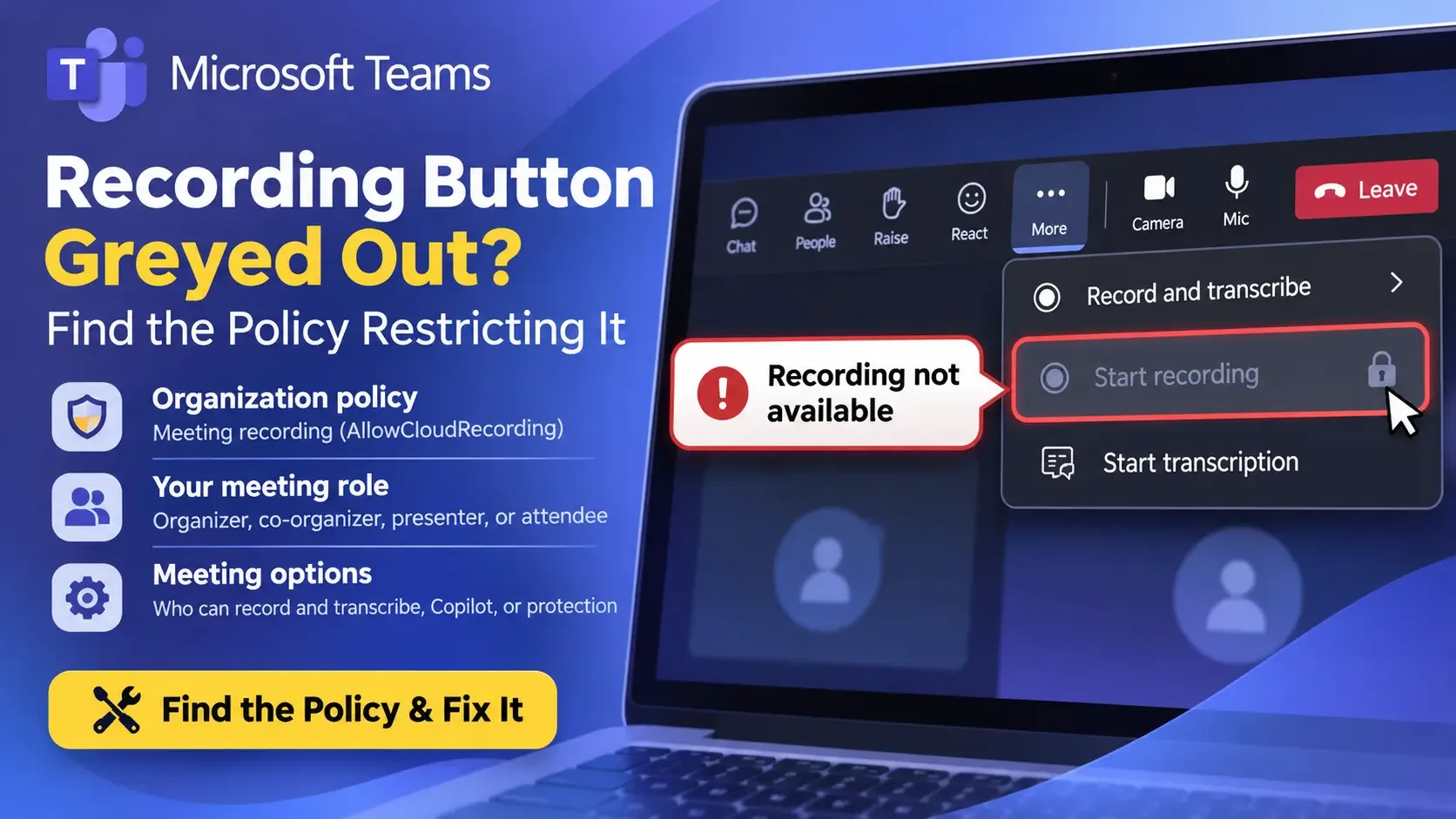
You join a Microsoft Teams meeting expecting to record an important discussion but the Start recording button is greyed out. Everything else seems to work normally. You can hear participants, share your screen and communicate during the meeting, yet Teams will not allow you to begin recording.
The restriction may come from your organization's recording policy, the meeting organizer's permissions or a setting applied to that particular meeting. What makes the problem confusing is that recording might work when you organize a meeting yourself but remain unavailable when you join a meeting organized by someone else.
Reinstalling Teams or changing random settings will not resolve an intentional recording restriction. The reliable approach is to identify which policy or meeting option is blocking the button, confirm who controls that setting and make only the changes your organization authorizes.
Identify the Recording Restriction
Microsoft Teams can provide a useful explanation when the recording button is disabled. Before investigating administrator policies, check whether the application identifies the reason.
While attending the affected meeting, select More actions (...) > Record and locate Start recording. If a lock icon appears, hover over it to read the explanation.
The message can help distinguish an organization-wide permission issue from a restriction that applies only to the current meeting.
| Recording restriction | Likely cause | What to check |
|---|---|---|
| Unavailable due to organization policy | Recording is blocked by an administrative policy | Meeting recording policy |
| Unavailable in this meeting | The organizer's policy or meeting configuration prevents recording | Organizer permissions |
| Only organizers and co-organizers can record | Your meeting role is not permitted to initiate recording | Recording options |
| Only organizers and presenters can record | You are participating as an attendee | Participant roles |
| Recording disabled by the organizer | The organizer has prevented participants from recording | Who can record and transcribe |
| Only people in this organization can record | You joined anonymously, as a guest or from another organization | Signed-in account |
| Recording unavailable because Copilot is off | The meeting's Copilot configuration prevents recording | Copilot settings |
| Recording has already started | Teams is processing an existing recording request | Recording status |
These descriptions summarize the restrictions documented by Microsoft. The wording displayed in your Teams application may be more specific, so use the actual message when deciding which setting to investigate.
Microsoft maintains an official guide to unavailable Teams recording controls that explains the different restriction messages and their causes.
If Teams specifically mentions an organization policy, the administrator should inspect the effective policies assigned to the meeting organizer and the person attempting to record. If the message refers to meeting roles or organizer settings, those controls should be checked first.
Check Your Meeting Role
Microsoft Teams does not automatically give every meeting participant permission to record.
Organizers, co-organizers, presenters and attendees have different capabilities. Depending on the meeting configuration, someone may be allowed to participate fully in a discussion without being permitted to start recording.
For example, an employee may join a departmental meeting as an attendee. The organization's recording policy might allow cloud recording but the organizer may have restricted recording to presenters and organizers.
In this situation, enabling cloud recording again at the administrator level would not address the participant's role restriction.
Find Your Assigned Role
Open the People panel during the meeting and locate your account in the participant list.
Check whether Teams identifies you as an attendee, presenter, co-organizer or organizer. If you are an attendee and Teams indicates that only presenters or organizers can record, ask the meeting organizer to review your permissions.
The organizer can open the meeting options and navigate to Roles > Who can present. They can then determine whether assigning you a presenter role is appropriate.
However, becoming a presenter does not necessarily make the recording button available. The meeting may have a separate restriction allowing only organizers and co-organizers to initiate recordings.
That setting must be checked independently.
Check Who Can Record
Eligible Microsoft Teams meeting organizers can decide which participants are permitted to start recording or transcription.
The relevant setting is Who can record and transcribe. It controls recording permissions within a particular meeting and operates alongside the organization's broader recording policies.
This distinction matters because an employee may have recording permission at the account level but still be prevented from recording a meeting configured with stricter participant permissions.
Review the Recording Options
Ask the meeting organizer to open the affected meeting in the Teams calendar.
The organizer should follow these steps:
Open Calendar in Microsoft Teams.
Select the affected meeting and choose View event.
Open Options.
Navigate to Recording & transcription.
Locate Who can record and transcribe.
Review the selected permission.
Make an authorized change if the meeting's recording requirements permit it.
Depending on licensing and meeting configuration, Teams offers the following options.
| Setting | Recording permission |
|---|---|
| Organizers and co-organizers | Only the organizer and co-organizers can initiate recording |
| Organizers, co-organizers and presenters | Eligible presenters can also initiate recording |
| No one | Nobody can manually start recording |
These advanced organizer controls require appropriate licensing, such as Teams Premium or an eligible Microsoft 365 Copilot license.
If the meeting permits recording only by organizers and co-organizers, an ordinary presenter cannot override that restriction. The organizer may be able to expand recording access or assign an appropriate participant as a co-organizer.
Understand the No One Restriction
The No one option requires particular attention because it prevents everyone in the meeting from manually starting recording or transcription.
Microsoft documents several conditions governing this option.
No one can be selected only when Allow Copilot is set to Off. It is not available when Record and transcribe automatically is enabled.
Therefore, if an organizer cannot select or change certain recording options, the Copilot and automatic recording settings should also be reviewed.
If automatic recording is already configured, check whether Teams has started recording before treating an unavailable Start recording command as a failure.
These dependencies are explained in Microsoft's Teams meeting options documentation.
Find the Blocking Policy
If meeting roles and recording options appear correct, the next important check is the organization's Teams meeting recording policy.
For ordinary Teams meetings, administrators control this permission through Meeting recording, which corresponds to the PowerShell parameter:
AllowCloudRecording
When enabled, this policy setting permits eligible users to initiate cloud recording. When disabled, it prevents recording under that policy.
However, the person clicking the recording button is not the only account whose permissions matter.
Both the meeting organizer and the recording initiator need the required recording permissions.
This is one of the most important details when troubleshooting inconsistent Teams recording availability.
Consider an employee who can successfully record meetings they organize themselves. The same employee joins a meeting organized by their department manager but the recording button is disabled.
The employee's own recording policy may be correctly configured. The actual restriction could come from the department manager's meeting policy.
If the manager is not permitted to record meetings, that organizer-side restriction can prevent everyone in the meeting from initiating recording.
Changing the employee's policy would not remove the manager's restriction.
Microsoft confirms this organizer-and-recorder requirement in its Teams meeting recording policy documentation.
Find the Assigned Policies
An authorized Teams administrator can inspect recording permissions through the Microsoft Teams admin center.
Sign in to the Microsoft Teams admin center.
Navigate to Users > Manage users.
Search for the meeting organizer's account.
Open the account and review its assigned policies.
Identify the meeting policy that applies to the organizer.
Repeat the process for the person attempting to record.
Navigate to Meetings > Meeting policies.
Open the relevant meeting policies.
Check whether Meeting recording is enabled.
The administrator should investigate both accounts rather than assuming that recording is permitted simply because one employee has the required policy.
If recording is disabled in either account's effective policy, determine whether that restriction is intentional.
When an employee genuinely requires recording access, the administrator can correct the relevant policy assignment or configure an approved recording-enabled policy.
Changes should reflect the organization's recording, privacy and information-protection requirements.
Check for Custom Policies
An enabled Global meeting policy does not necessarily mean that every employee can record Teams meetings.
Microsoft Teams supports custom policies assigned directly to individual users or inherited through groups.
For example, a business might allow meeting recording for its operations team but prohibit recording for employees handling sensitive financial or customer information.
The Global policy could permit recording while employees in the restricted department receive a separate custom policy.
An administrator who checks only the Global recording setting may incorrectly conclude that everyone has recording permission.
Microsoft resolves policy assignments through a defined hierarchy.
A directly assigned user policy takes precedence over group assignments. When multiple relevant group assignments exist, their ranking helps determine which policy becomes effective.
The Global policy applies when no more specific assignment takes precedence.
For accurate troubleshooting, administrators should identify the effective Teams meeting policy for both the organizer and recording participant.
The next section explains how to do this through PowerShell.
Check Recording with PowerShell
Microsoft Teams PowerShell provides a practical way to inspect recording policies, identify effective assignments and verify which configuration applies to an affected account.
This is particularly useful when an organization maintains several custom policies or employees report different recording behaviour.
The initial commands below are read-only. They inspect the configuration without changing permissions.
Connect to Microsoft Teams
Open PowerShell using an account with appropriate Microsoft Teams administrative permissions.
If the Microsoft Teams PowerShell module is installed, connect using:
Connect-MicrosoftTeamsComplete the sign-in process when prompted.
If the module is not installed, follow Microsoft's official MicrosoftTeams PowerShell module installation instructions before continuing.
Inspect the Global Policy
Start by checking the Global meeting recording setting.
Get-CsTeamsMeetingPolicy -Identity Global |
    Select-Object Identity, AllowCloudRecording
This command displays the policy identity and its cloud recording permission.
If AllowCloudRecording returns True, the Global meeting policy permits recording.
If it returns False, recording is disabled for users governed by that policy.
However, this result does not establish which policy applies to a specific employee. A custom policy may override the Global setting.
Find the Effective Policy
Use the following command to identify the effective meeting policy assigned to the affected user.
Get-CsUserPolicyAssignment `
    -Identity "employee@example.com" `
    -PolicyType TeamsMeetingPolicy |
    Format-List PolicyType, PolicyName, PolicySource
Replace employee@example.com with the user's actual Microsoft 365 account.
The output can identify the effective custom policy and provide information about how it was assigned.
The important properties include:
| Property | Meaning |
|---|---|
| PolicyType | The category of Teams policy |
| PolicyName | The effective custom policy, when returned |
| PolicySource | Information about direct and group-based assignments |
To inspect the policy assignment sources more clearly, run:
Get-CsUserPolicyAssignment `
    -Identity "employee@example.com" `
    -PolicyType TeamsMeetingPolicy |
    Select-Object -ExpandProperty PolicySource
This can help an administrator identify whether the policy came from a direct assignment or a group.
Repeat the effective-policy check for the meeting organizer. An organizer-side restriction can explain why recording is unavailable even when the intended recorder has the correct policy.
Understand an Empty Result
Sometimes Get-CsUserPolicyAssignment does not return an effective custom policy for the requested policy type.
This does not necessarily indicate a configuration problem.
Microsoft explains that an empty result can mean the user is governed by the tenant's Global default or the system Global default.
The administrator should inspect the applicable Global meeting policy rather than concluding that the employee has no recording restrictions.
This behaviour is documented in Microsoft's Get-CsUserPolicyAssignment reference.
Inspect the Custom Policy
Once the effective custom policy has been identified, inspect its recording permission.
Get-CsTeamsMeetingPolicy -Identity "ActualPolicyName" |
    Select-Object Identity, AllowCloudRecording
Replace ActualPolicyName with the policy name returned by the assignment check.
If the value is False, that policy prevents recording.
If the value is True, recording is permitted under that policy, but the administrator must still verify the organizer's effective policy and meeting-level controls.
A recording-enabled policy does not override an intentional meeting restriction.
Enable Recording Safely
If an administrator confirms that recording is incorrectly disabled for an authorized employee, there are two possible configuration changes.
The administrator can modify an existing policy or assign a different approved policy to the affected account.
These actions have different consequences and should not be confused.
Update an Existing Policy
If recording should be enabled for everyone governed by a particular existing policy, an administrator can update that policy using:
Set-CsTeamsMeetingPolicy `
    -Identity "ApprovedRecordingPolicy" `
    -AllowCloudRecording $true
This enables cloud recording within the named policy.
It does not automatically assign the policy to an employee or override other recording restrictions.
Before making the change, the administrator should identify which users or groups receive the policy.
For example, enabling recording in a policy shared by an entire department might unintentionally grant recording access to employees who were deliberately restricted.
When only one employee needs recording access, assigning a separate approved policy may be more appropriate.
Assign an Approved Policy
If a suitable recording-enabled policy already exists, the administrator can inspect it before making an assignment.
Get-CsTeamsMeetingPolicy -Identity "ApprovedRecordingPolicy" |
    Select-Object Identity, AllowCloudRecording
Confirm that the policy exists, permits recording and is approved for the intended employee.
The administrator can then assign the existing policy:
Grant-CsTeamsMeetingPolicy `
    -Identity "employee@example.com" `
    -PolicyName "ApprovedRecordingPolicy"
This applies the specified meeting policy directly to the user.
It does not modify the underlying policy settings.
Because a direct assignment can take precedence over group-based policies, the administrator should verify that the change does not bypass an intended departmental restriction.
After the assignment has taken effect, repeat the effective-policy check and test recording in an authorized meeting.
Microsoft documents these procedures in its Teams policy assignment guidance.
Check the Copilot Setting
An enabled meeting recording policy does not always make the recording button available.
Microsoft Teams also connects recording availability to certain Copilot meeting settings.
When the organizer sets Allow Copilot to Off, Teams also disables recording and transcription.
This can explain a situation where an employee has the correct recording policy and meeting role but still cannot start recording.
The restriction may have been applied intentionally. For example, an organizer might disable Copilot during a confidential business discussion without realizing that doing so also prevents recording.
Find the Copilot Restriction
Ask the meeting organizer to open the affected meeting's options.
Navigate to Copilot and other AI and review the Allow Copilot setting.
If the setting is Off, that configuration can explain why recording is unavailable to everyone.
Where another setting is available, the organizer can determine whether changing it is appropriate for the meeting's recording requirements.
However, Copilot may have been disabled to meet privacy, compliance or information-protection requirements.
The organizer should not change that restriction merely to enable recording without considering its implications.
Microsoft documents the connection between Copilot and recording in its meeting recording protection guidance.
Check Meeting Protection
Some organizations use Microsoft Teams Premium features and Microsoft Purview sensitivity labels to protect meetings involving confidential information.
These controls can restrict recording even when the organizer and intended recorder have the required meeting policies.
The most relevant checks involve meeting templates, sensitivity labels and end-to-end encryption.
Check Templates and Labels
An organization can create meeting templates that apply predefined settings to particular types of meetings.
For example, a company might allow presenters to record ordinary project discussions but restrict recording to organizers during sensitive client meetings.
Sensitivity labels can also enforce recording-related meeting options.
If the meeting's Who can record and transcribe option is locked, the organizer should check whether a template or sensitivity label is responsible.
Where recording permissions are enforced, the administrator responsible for the protected meeting configuration may need to review the restriction.
Removing a sensitivity label simply to make recording available is not an appropriate routine troubleshooting step.
The label may protect information that the organization does not permit participants to record.
Check End-to-End Encryption
End-to-end encryption is another reason recording may remain unavailable.
Microsoft Teams supports end-to-end encryption for eligible meetings, but this protection disables features that require the service to access meeting media.
Recording and transcription are among those unavailable features.
For example, an administrator may verify that AllowCloudRecording is enabled for both the organizer and participant, yet recording remains disabled because the meeting uses end-to-end encryption.
The organizer should review the meeting's Advanced protection options and determine whether end-to-end encryption is enabled.
If encryption is mandatory for that meeting, recording should remain unavailable.
If recording is required, the organization should determine whether a different approved meeting configuration is suitable.
Microsoft confirms these limitations in its end-to-end encryption documentation.
Check Your Account
Your Microsoft Teams account and organization membership can also affect recording eligibility.
Microsoft restricts ordinary meeting recording for anonymous users, guests and external participants.
For example, an employee may have recording permission in their own organization but find recording unavailable when attending a customer meeting hosted by another company.
The employee's own recording-enabled policy does not automatically grant recording permission in the customer's meeting.
Verify Your Signed-In Account
Check which Microsoft 365 account you used to join the meeting.
If you have access to several organizations, confirm whether you joined through your primary work account or a guest identity.
If you are an external participant, ask an eligible person from the organizer's organization to start the recording.
That person may be able to share the recording afterward if the organization's sharing policies permit it.
Changing your own organization's meeting recording policy will not override the host organization's restrictions.
Separate Guest Sign-In Problems
A guest authentication problem should not be confused with a recording restriction.
For instance, someone may be unable to access a Teams meeting because their guest authentication token has expired or their tenant authorization is no longer valid.
That requires account-access troubleshooting rather than a change to meeting recording permissions.
If your issue involves an expired guest token or a tenant authentication restriction, BusinessTally's Microsoft Teams guest token troubleshooting guide explains the relevant checks.
However, successfully signing in as a guest does not automatically give you permission to record another organization's meeting.
Check API-Created Meetings
Not every Teams meeting is created directly through the Microsoft Teams calendar.
Some organizations use appointment systems, customer management platforms or other business applications that create online meetings through the Microsoft Graph API.
These integrations can apply meeting-specific recording restrictions.
One relevant Microsoft Graph property is:
allowRecording
This Boolean property indicates whether recording is enabled for an online meeting.
If the meeting is created with allowRecording set to false, recording can remain unavailable even when ordinary user policy checks appear correct.
Find the Integration Restriction
First, determine whether the affected meeting was created directly in Teams or through a connected business application.
If an integration created the meeting, ask the application administrator or developer to review the online meeting configuration.
Consider a business where employees can record manually scheduled meetings but can not record customer appointments created through an automated booking system.
The booking integration may be creating meetings with recording disabled.
Changing the employees' Teams recording policies would not correct that meeting-specific configuration.
The integration owner should inspect the recording property, the organizer's permissions and any relevant organizational requirements.
Microsoft documents allowRecording in its Graph online meeting reference.
If recording was prohibited when the meeting was created, Microsoft's guidance describes closing the affected meeting and creating a new one with recording enabled when necessary.
Any change should be made only when the organization permits recording.
Check Calls and Events
Before changing administrator policies, determine whether the problem occurs during an ordinary meeting, a direct call or a Teams event.
These activities do not always use the same recording controls.
A policy change that affects ordinary meetings may not resolve a recording restriction during a one-to-one call or webinar.
Direct Teams Calls
An employee might successfully record scheduled Teams meetings but find recording unavailable during a direct call.
For supported one-to-one Teams calls and PSTN calls, administrators should inspect the Teams calling policy.
The relevant setting is Cloud recording for calling, represented in PowerShell by:
AllowCloudRecordingForCalls
An administrator can find it under Teams admin center > Voice > Calling policies.
To inspect the Global calling policy, run:
Get-CsTeamsCallingPolicy -Identity Global |
    Select-Object Identity, AllowCloudRecordingForCalls
If the organization uses custom calling policies, the administrator should identify the user's effective calling policy before deciding which configuration applies.
The ordinary meeting recording parameter AllowCloudRecording does not replace the separate calling policy setting.
Microsoft explains the distinction in its Teams calling recording documentation.
Webinars and Town Halls
Teams webinars and town halls can also have event-specific recording controls.
If recording is unavailable during one of these events, the administrator should review Meetings > Events policies.
Microsoft provides separate recording settings for events with up to 1,000 attendees and events optimized for larger audiences.
Therefore, administrators should identify the event type before changing ordinary meeting policies.
Verify Recording Licenses
If recording has never worked for an employee, licensing is another important requirement to verify.
Microsoft Teams recording requires an eligible account and the applicable Microsoft 365 or Office 365 licensing.
An employee might encounter recording problems after receiving a new account, moving to another subscription or having a required license removed.
The administrator should review the licenses assigned to the meeting organizer and intended recorder.
However, a greyed-out recording button does not automatically mean that the employee needs a more expensive subscription.
If Teams identifies an organization policy, role restriction or external participant limitation, that explanation should be investigated first.
Advanced organizer-controlled recording options may also have licensing requirements that differ from ordinary meeting recording.
For this reason, licensing should be checked against the exact feature and restriction involved rather than treated as a universal solution.
Test the Recording Permission
After correcting the identified restriction, run a controlled test to confirm whether recording has become available.
Avoid changing several unrelated settings simultaneously. Otherwise, it becomes difficult to determine which change actually resolved the problem.
The most useful tests compare meetings organized by different accounts and, where appropriate, compare the Teams desktop and web applications.
Test a New Meeting
Ask the affected employee to create a new Teams meeting using their normal work account.
Have another eligible employee from the same organization join the meeting.
Check whether Start recording is available and whether an authorized participant can successfully initiate recording.
If recording works in the new meeting but not in the original one, investigate the original organizer's policy and meeting-specific settings.
If recording is unavailable in both meetings, the employee's account permissions, licensing or another shared restriction deserves closer attention.
Compare Different Organizers
Another useful test involves two meetings organized by different employees.
Suppose recording works when a project coordinator organizes a meeting but becomes unavailable when a department manager organizes another.
If the participant's account and role are otherwise comparable, the difference may involve the organizers' meeting policies or recording options.
Compare those settings before changing the recording participant's account.
This approach helps administrators narrow the investigation without unnecessarily modifying organization-wide permissions.
Test the Teams Web App
If the administrator has confirmed that recording should be permitted, test an authorized meeting through the Teams web application.
Use the same work account and check whether recording is available.
If recording works in the browser but not in the desktop application, investigate the installed Teams client.
Check for Teams updates and consider signing out and signing back in.
However, using a different Teams client will not override a recording policy that explicitly prohibits recording.
If the restriction appears in both environments, continue investigating the account and meeting configuration.
Allow Changes to Apply
Microsoft Teams policy changes may take time to propagate.
If an administrator recently enabled recording or assigned a different meeting policy, the application may temporarily continue displaying the previous restriction.
Confirm that the correct policy was changed and allow the updated configuration to become effective before testing again.
Repeatedly toggling the same policy is not a reliable solution.
If recording remains unavailable after the update takes effect, return to the organizer's policy and meeting-specific settings.
Run Microsoft's Diagnostic
When the relevant policies and meeting options appear correct but the recording button remains unavailable, Microsoft provides a dedicated recording diagnostic.
An authorized Microsoft 365 administrator can use this tool to investigate licensing, meeting policies and other recording prerequisites.
This is particularly valuable when ordinary troubleshooting has not revealed the restriction.
Run the Recording Test
The administrator can follow these steps:
Sign in to the Microsoft 365 admin center.
Open Microsoft's Teams meeting recording troubleshooting documentation.
Select the Run Tests option for Meeting Recording.
Enter the affected user's account.
Run the diagnostic.
Review the reported issues and recommended checks.
The diagnostic can identify account and configuration problems that might not be obvious from the Teams interface.
Microsoft notes that the diagnostic is unavailable in certain Microsoft 365 cloud environments.
If the diagnostic does not identify the issue, the administrator can escalate the problem to Microsoft Support.
Include the affected account, meeting organizer, meeting type, exact restriction message and results from any controlled tests.
The official Microsoft Teams meeting recording diagnostic guide explains how to access and use the diagnostic.
What to Tell Your Administrator
Employees without Microsoft Teams administrative access can still help their IT department identify the recording restriction.
Rather than reporting only that recording is not working, describe the exact behaviour and whether it changes between meetings.
Provide the following information:
The exact message displayed beside the disabled recording button.
Whether recording is unavailable in every meeting or only certain meetings.
The meeting organizer's work account.
Your role as organizer, co-organizer, presenter or attendee.
Whether you joined from the organizer's organization or as an external participant.
Whether recording works in meetings you organize yourself.
Whether the meeting was scheduled directly in Teams or through another application.
Whether the problem began after a recent policy or licensing change.
These details help administrators determine where to investigate first.
For ordinary Teams meetings, comparing the effective recording policies of the organizer and intended recorder is often the most useful administrative check.
If those policies permit recording, attention should shift to the meeting's recording options and any enforced restrictions.
Restore the Correct Permission
A greyed-out Microsoft Teams recording button does not have one universal solution. The appropriate fix depends on whether recording is restricted by the user's policy, the organizer's policy, the meeting configuration or the type of Teams session.
For ordinary meetings, the primary administrator-controlled setting is Meeting recording, represented by AllowCloudRecording in PowerShell. Both the organizer and the person initiating the recording need the required permissions.
When those permissions are already enabled, the next checks should focus on participant roles, organizer-controlled recording options, Copilot settings and any meeting-specific protection.
The problem is resolved when an authorized participant can start recording in the intended meeting without bypassing the organization's approved restrictions.
For other Microsoft Teams problems involving meetings, guest access, permissions, and collaboration features, visit the BusinessTally Microsoft Teams troubleshooting hub.