
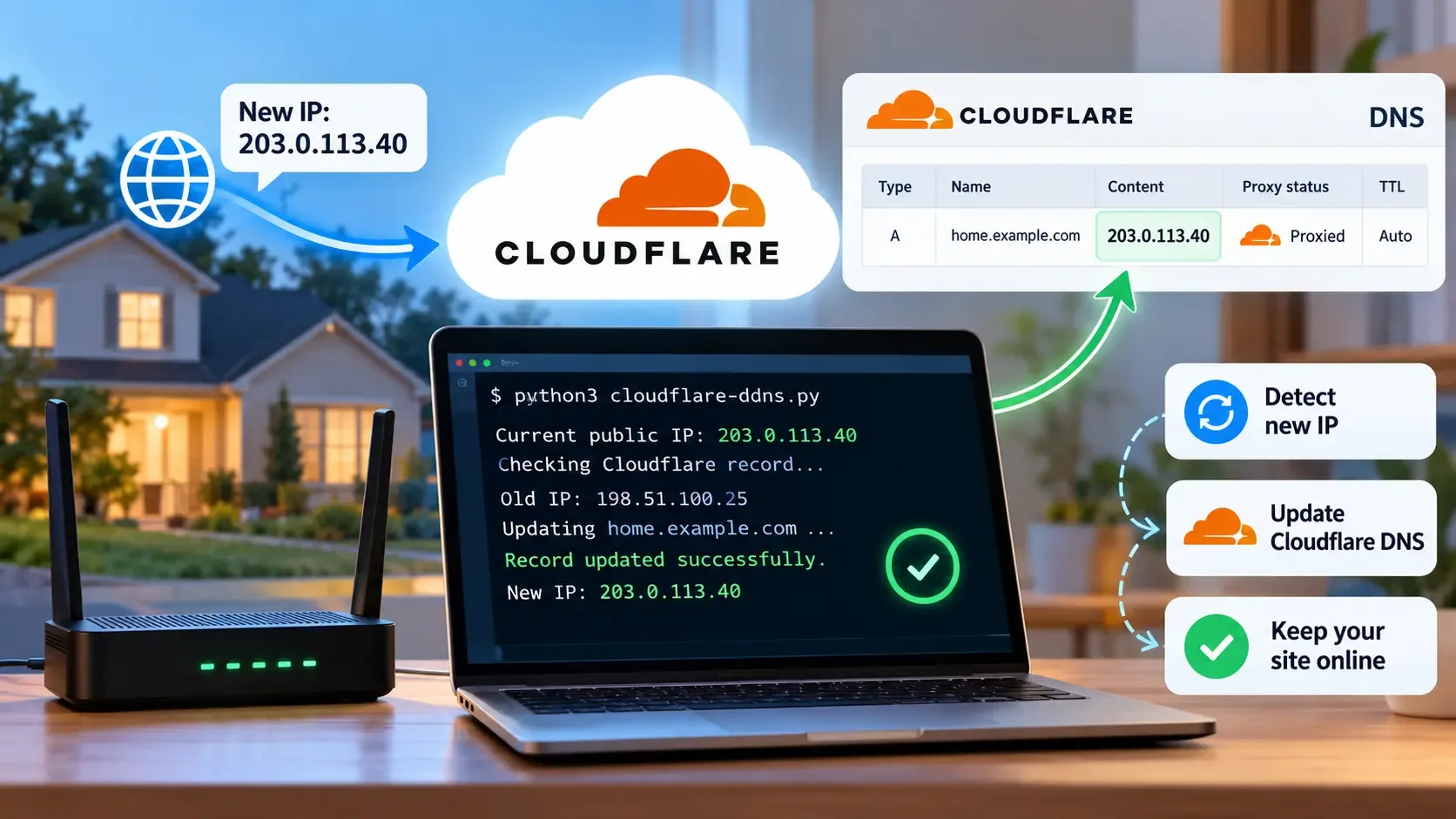
When your home internet provider changes your public IP address, a website or application hosted on that connection can become unreachable. Cloudflare may still have your previous IP saved in its DNS records, causing visitors to connect to an address that no longer leads to your home server.
You can prevent this by configuring Cloudflare Dynamic DNS (DDNS). Instead of manually updating your DNS records whenever your ISP assigns a new address, an automated script checks your public IP and updates Cloudflare when it changes.
The setup requires an existing Cloudflare DNS record, an API token with permission to update it and a device that can run the updater regularly. Once configured, the process can keep your domain pointing to the current home IP without unnecessary DNS changes.
Why Your Home IP Must Stay Updated
Suppose you host a small website at home.example.com and your internet provider initially assigns the public IPv4 address 198.51.100.25.
Your Cloudflare A record contains that address, allowing the hostname to point toward your home connection.
Later, the ISP changes your public address to 203.0.113.40. Unless something updates Cloudflare, the DNS record continues referencing the old address.
| Setting | Before IP change | After IP change |
|---|---|---|
| Home public IP | 198.51.100.25 | 203.0.113.40 |
| Cloudflare A record | 198.51.100.25 | 198.51.100.25 |
| Required DNS value | 198.51.100.25 | 203.0.113.40 |
| Status | Correct | Outdated |
These are reserved documentation addresses used only to illustrate the change.
A DDNS updater corrects the mismatch automatically. It discovers your current public IP, reads the existing Cloudflare record and replaces the stored address only when the values differ.
Cloudflare officially supports this approach through its DNS API and also identifies compatible third-party dynamic DNS clients as an alternative.
Check Your Home’s Public IP Address
Before creating the updater, determine whether your home router receives a publicly reachable IPv4 address.
Dynamic DNS can keep an A record current but it cannot make an otherwise unreachable home connection publicly accessible. This distinction matters when an ISP uses carrier-grade NAT (CGNAT).
Open your router's administration interface and locate its WAN or Internet IP address. Then, from a device connected to your home network without an active VPN, check the public IPv4 shown by an IP lookup service.
Compare the results.
| What you discover | What it indicates |
|---|---|
| Router WAN IP matches the public IPv4 | Your router likely has a directly assigned public IPv4 |
| Router WAN IP is in a private address range | An upstream router or NAT connection is involved |
| Router WAN IP is within 100.64.0.0–100.127.255.255 | Your ISP may be using CGNAT |
| Public lookup returns your VPN's IP | The detected address may not represent your home connection |
If the router uses CGNAT, updating Cloudflare to the externally observed address generally will not allow unsolicited connections to reach your private home server.
You may need a publicly reachable address from your ISP or a different connection method. For this guide, the intended setup is a home server that can already accept traffic through a public IPv4 address.
Prepare the Cloudflare DNS Record
Sign in to your Cloudflare dashboard, select your domain and open DNS → Records.
Create an A record for the hostname you want to keep updated or locate the existing record if it has already been configured.
For example:
| Field | Configuration |
|---|---|
| Type | A |
| Name | home |
| IPv4 address | Your current public IPv4 |
| Proxy status | Proxied or DNS-only |
| TTL | Auto |
This configuration creates the hostname home.example.com.
The correct proxy status depends on your application. A conventional website using supported HTTP or HTTPS ports can use Cloudflare's proxy, while services requiring unsupported protocols or ports may need DNS-only.
You do not need to disable Cloudflare proxying to enable dynamic DNS updates. The updater can change the stored origin IP while leaving the existing proxy status unchanged.
For the automation below, use a hostname with exactly one intended A record. The script will refuse to proceed if it finds an ambiguous configuration.
Create an API Token for DNS Updates
Cloudflare's API allows authorized applications to read and modify DNS records. Your updater needs that access so it can correct the saved address whenever your public IP changes.
Open My Profile → API Tokens → Create Token in Cloudflare. Select the Edit Zone DNS template and restrict the token to the domain you want to update.
Use the following configuration:
| Setting | Recommended value |
|---|---|
| Token name | Home DDNS Updater |
| Permission | Zone → DNS → Edit |
| Zone resources | Include → Specific zone |
| Selected zone | Your domain |
The DNS editing permission allows the updater to retrieve and modify records in the authorized zone. Restricting the token to one domain is safer than granting access to every domain in your Cloudflare account.
Copy the token when Cloudflare generates it and store it securely. You will also need the domain's Zone ID, available from the Cloudflare dashboard.
These two values allow the automation to authenticate and identify the correct DNS zone.
Create the Automatic DNS Updater
The following Python script detects your current public IPv4 address and checks the matching A record through Cloudflare's API.
It is designed to update one existing record rather than create new records or modify unrelated hostnames.
The script uses Cloudflare's exact-name filter, name.exact, together with the record type. It also checks the returned record before making any modification.
Python Script
The example uses Python's standard library, so no additional Python package is required.
Save the code as cloudflare-ddns.py on your home server or another device connected to the home internet connection.
import ipaddress
import json
import os

from urllib.parse import urlencode
from urllib.request import Request, urlopen


TOKEN = os.environ["CF_API_TOKEN"]
ZONE_ID = os.environ["CF_ZONE_ID"]

HOSTNAME = (
    os.environ["CF_RECORD_NAME"]
    .strip()
    .rstrip(".")
    .lower()
)

BASE = (
    "https://api.cloudflare.com/client/v4/"
    f"zones/{ZONE_ID}/dns_records"
)

HEADERS = {
    "Authorization": f"Bearer {TOKEN}",
    "Content-Type": "application/json"
}


def cloudflare(url, payload=None):

    data = (
        json.dumps(payload).encode("utf-8")
        if payload is not None
        else None
    )

    request = Request(
        url,
        headers=HEADERS,
        data=data,
        method="PATCH" if data is not None else "GET"
    )

    with urlopen(request, timeout=15) as response:
        body = json.load(response)

    if not body.get("success"):
        raise RuntimeError(
            f"Cloudflare API error: {body.get('errors')}"
        )

    return body["result"]


def run():

    # Get the current public IPv4.
    with urlopen(
        "https://api.ipify.org",
        timeout=10
    ) as response:

        public_ip = (
            response.read()
            .decode("ascii")
            .strip()
        )

    address = ipaddress.ip_address(public_ip)

    if (
        not isinstance(address, ipaddress.IPv4Address)
        or not address.is_global
    ):
        raise ValueError(
            "Public IP lookup did not return "
            "a global IPv4 address"
        )

    # Find the exact Cloudflare A record.
    filters = urlencode({
        "type": "A",
        "name.exact": HOSTNAME,
        "match": "all",
        "per_page": 2
    })

    records = cloudflare(
        f"{BASE}?{filters}"
    )

    if len(records) != 1:
        raise RuntimeError(
            "Expected exactly one A record "
            "for this hostname"
        )

    old = records[0]

    # Verify the returned record identity.
    if (
        old["type"] != "A"
        or old["name"].lower().rstrip(".") != HOSTNAME
    ):
        raise RuntimeError(
            "Cloudflare returned an unexpected DNS record"
        )

    # Do nothing when the address is unchanged.
    if old["content"] == public_ip:
        print(f"No change: {public_ip}")
        return

    # Preserve existing DNS settings.
    details = {
        "type": "A",
        "name": old["name"],
        "content": public_ip,
        "ttl": old["ttl"],
        "proxied": old["proxied"]
    }

    cloudflare(
        f"{BASE}/{old['id']}",
        details
    )

    # Retrieve the record again.
    saved = cloudflare(
        f"{BASE}/{old['id']}"
    )

    # Confirm the expected record was updated.
    if any((
        saved["id"] != old["id"],
        saved["type"] != "A",
        saved["name"].lower().rstrip(".") != HOSTNAME,
        saved["content"] != public_ip,
        saved["ttl"] != old["ttl"],
        saved["proxied"] != old["proxied"]
    )):
        raise RuntimeError(
            "Cloudflare record verification failed"
        )

    print(
        f"Updated {HOSTNAME}: "
        f"{old['content']} -> {public_ip}"
    )


if __name__ == "__main__":
    run()
Why the Exact Record Check Matters
Cloudflare's DNS API supports filtering records by their exact hostname. The script uses name.exact instead of a broad search that could return records containing similar names.
For example, home.example.com and old-home.example.com should not be treated as interchangeable. The script requires an exact hostname and an A record, preventing it from selecting a similarly named record by mistake.
It also limits the query to two results. Because the configuration expects exactly one A record, receiving two matching records is enough to identify an ambiguous setup and stop the update.
After selecting the record, the script compares its stored IP with the current public address. When the values match, it exits without sending an update.
When the values differ, it submits the new address while preserving the record's TTL and proxy setting. It then retrieves the same record again to confirm that the intended change was saved.
This verification checks Cloudflare's stored configuration. It does not independently guarantee that visitors can reach the home server.
Configure Your Cloudflare Credentials
The script obtains its credentials from environment variables rather than embedding the API token directly in the Python file.
On Linux, create a configuration directory:
mkdir -p "$HOME/.config"
Create the configuration file:
nano "$HOME/.config/cloudflare-ddns.env"
Add the following values:
CF_API_TOKEN='YOUR_API_TOKEN'
CF_ZONE_ID='YOUR_ZONE_ID'
CF_RECORD_NAME='home.example.com'
Replace the placeholders with your Cloudflare API token, Zone ID, and the full hostname you want to update.
Save the file and restrict its permissions:
chmod 600 "$HOME/.config/cloudflare-ddns.env"
The restricted permissions help prevent other ordinary local users from reading the credentials.
Store the configuration outside your website's public directory and avoid including the token in publicly accessible repositories or scripts. The token can modify DNS records within its authorized zone.
Test the Updater Without Disrupting Your Website
Before scheduling automatic updates, verify that the script identifies the intended record and can complete an actual update.
Start with a manual execution. Assuming the Python script is saved in your home directory, load the credentials using:
set -a
. "$HOME/.config/cloudflare-ddns.env"
set +a

python3 "$HOME/cloudflare-ddns.py"
If the configured DNS address already matches your public IP, the script should display a message similar to:
No change: 203.0.113.40
The actual output will contain your current IP rather than the example address.
This confirms the read-and-compare process but it does not establish that the updater can successfully change an outdated record.
Verify an Actual Update Using a Test Record
Rather than intentionally changing your production website's DNS record, create a separate, unused hostname such as ddns-test.example.com.
Configure a DNS-only A record for that test hostname with an address different from your current home IP. Use an appropriate temporary test value accepted by Cloudflare and do not direct production traffic to the test hostname.
Temporarily change the hostname in your credentials file:
CF_RECORD_NAME='ddns-test.example.com'
Run the script again. Because the test record differs from your current public IP, the updater should attempt to replace the stored address.
Check the record in the Cloudflare dashboard and confirm the following:
| Verification | Expected result |
|---|---|
| Record hostname | ddns-test.example.com |
| Record type | A |
| Stored IPv4 | Your current public IP |
| Proxy setting | Remains DNS-only |
| TTL | Unchanged |
Run the script a second time without changing the IP. It should now report that no update is needed.
This confirms that the updater handles both an outdated record and an unchanged record.
After testing, restore the configuration to your intended production hostname and remove the temporary test record when it is no longer required.
Schedule Cloudflare DNS Updates Every Five Minutes
Once the manual test succeeds, configure the updater to run automatically.
For a Linux home server, cron provides a simple scheduling method. Open your crontab:
crontab -e
Add the following entry:
*/5 * * * * (set -a; . "$HOME/.config/cloudflare-ddns.env" && /usr/bin/python3 "$HOME/cloudflare-ddns.py") >> "$HOME/cloudflare-ddns.log" 2>&1
The job runs every five minutes and performs the same public IP comparison as the manual script.
The set -a command exports the credentials loaded from the configuration file. This ensures the Python process can access the environment variables it requires.
The command also saves normal output and error messages to cloudflare-ddns.log, allowing you to investigate failures without manually running the updater.
Confirm that Python is installed at the expected location:
command -v python3
If your installation uses another path, update the cron entry accordingly.
How Quickly Will Cloudflare Update?
Suppose your ISP changes the public IP at 2:02 PM and the scheduled updater next runs successfully at 2:05 PM.
The updater should detect the new address during that execution and submit it to Cloudflare.
However, that does not guarantee every visitor will regain access immediately. Temporary internet interruptions, failed API requests or cached DNS responses can extend the recovery time.
A five-minute interval is a practical starting point for home hosting. A shorter interval may detect changes sooner but it cannot eliminate disruptions caused by the ISP connection itself.
Confirm That Cloudflare Has the Correct IP
After an update, open Cloudflare → DNS → Records and inspect the A record for your home hostname.
The stored address should match the public IPv4 detected from your home connection.
You can also check a DNS response but the expected result depends on whether the record is proxied.
| Record setting | Expected public DNS response | Best verification |
|---|---|---|
| DNS-only | The configured origin IP | DNS lookup and Cloudflare record |
| Proxied | Cloudflare's proxy IP addresses | Cloudflare record and website connection |
For a DNS-only hostname, use:
dig @1.1.1.1 home.example.com A +short
After relevant caches expire, the response should reflect the origin IP saved in Cloudflare.
If the record is proxied, the public response normally contains Cloudflare IP addresses rather than your home server's address. That is expected and does not indicate the updater failed.
For proxied records, verify the saved address through the dashboard or API, then load your website through its regular hostname to confirm that the connection works.
Why the DNS Update Might Not Restore Access
A successful Cloudflare update corrects the hostname's stored IPv4 address. It does not automatically resolve issues involving router access, network restrictions or the server itself.
If the record is correct but the home-hosted service remains unavailable, identify where the connection is failing.
| Symptom | Likely cause | What to check |
|---|---|---|
| DNS shows the correct IP but the website times out | Router forwarding or firewall restriction | Public port and forwarding rules |
| Router WAN IP differs from the public lookup | Upstream NAT or CGNAT | ISP network configuration |
| Updater detects an unexpected address | VPN or proxy interference | IP lookup connection |
| Manual execution works but cron fails | Environment or file path error | Cron command and log file |
| Cloudflare rejects the update | Token permission or API configuration issue | Token, zone and record settings |
| IPv4 works but IPv6 access fails | Outdated AAAA record | IPv6 DNS configuration |
One situation worth checking is a change to the home server's internal address.
For example, your router may forward incoming connections to 192.168.1.50. If that server later receives 192.168.1.75, the forwarding rule can still point to the previous address.
Cloudflare may have your correct public IPv4 while the router sends incoming traffic to the wrong local device.
A DHCP reservation for the home server can help prevent that problem by keeping its internal network address consistent.
Remember That IPv6 Is Separate
The provided script updates one IPv4 A record. It does not update an IPv6 AAAA record.
If your ISP changes your IPv6 address or delegated prefix, you may need a separate IPv6 updater to maintain the AAAA record.
An outdated AAAA record can cause connection problems for IPv6-capable clients even when your A record is correct. Check both address families if the service supports IPv4 and IPv6.
Keep the Updater Running Reliably
A dynamic DNS updater should run on a device that remains powered on and connected to the home network. An always-on home server or compatible router is generally better suited than a laptop that is frequently switched off.
Review the updater's log after initial setup and whenever you change credentials or scheduling settings. A failed public IP lookup or Cloudflare API request should be investigated rather than allowing outdated records to remain unnoticed.
The example script stops when it can not obtain a valid public IPv4 address, encounters an unexpected DNS record or receives an unsuccessful API response. These safeguards help prevent incorrect automatic changes.
If you prefer a maintained DDNS client rather than a custom Python script, Cloudflare also documents ddclient as an alternative for automatically updating DNS records.
With the updater running successfully, your Cloudflare hostname can follow changes to your home public IPv4 address without manual DNS edits. The essential result is that the intended record stays current, its existing settings remain intact and the home server continues accepting traffic through the updated connection.