
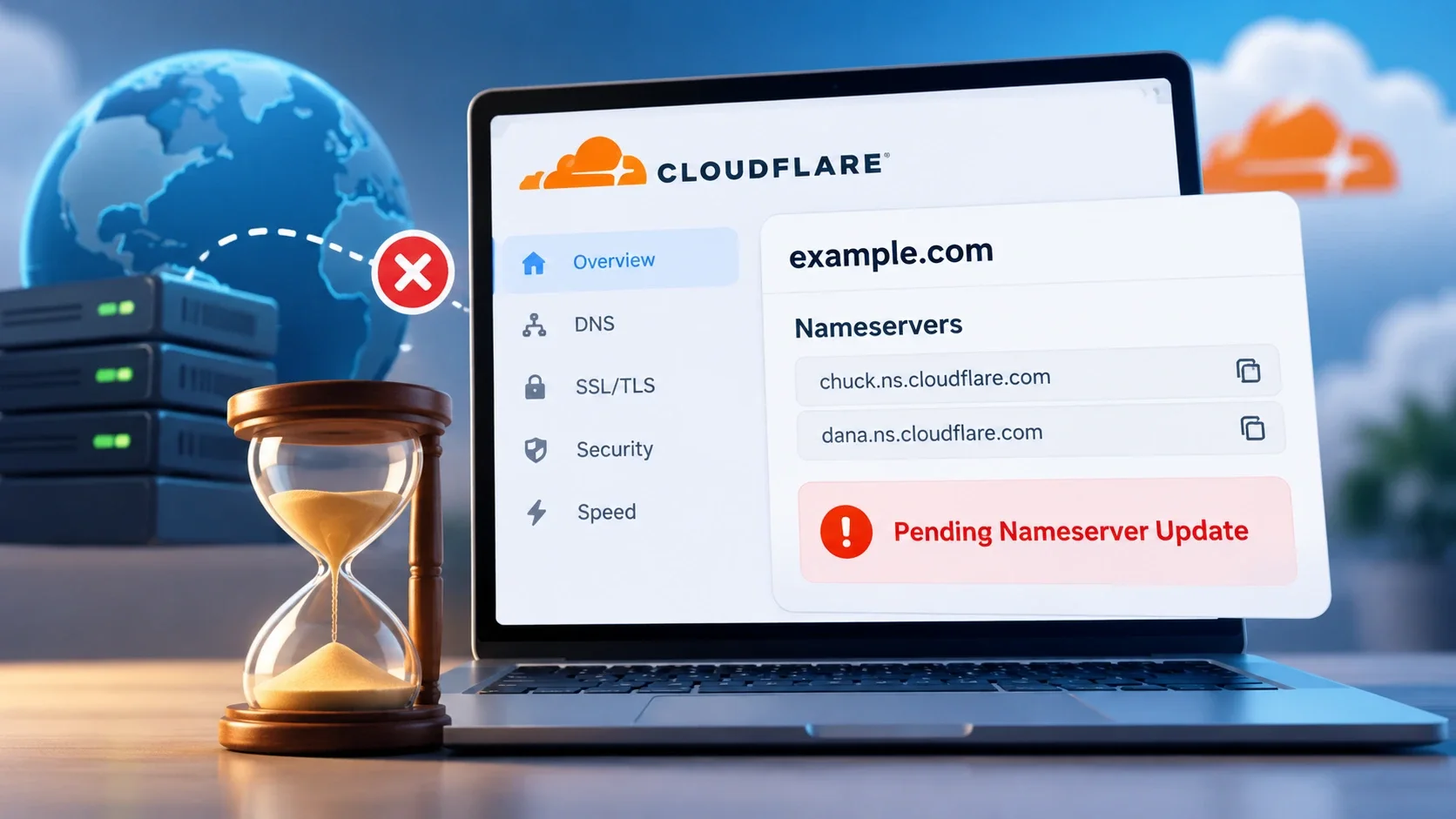
You changed your domain's nameservers to Cloudflare, saved the changes at your registrar and expected the domain to become active. Instead, Cloudflare continues showing Pending Nameserver Update, even though the registrar appears to have accepted the changes.
The important distinction is that your registrar's dashboard shows the configuration you submitted, not necessarily the nameservers currently published for your domain. Cloudflare must verify that the domain is delegated to the exact nameservers assigned to your account before activation can finish.
I would investigate three possibilities before waiting any longer: the domain is using an incorrect Cloudflare nameserver assignment, the registrar has not published the updated delegation, or an old DNSSEC record is interfering with activation. Each produces a similar pending status but the evidence and corrective action are different.
Check Your Assigned Cloudflare Nameservers
Open Cloudflare, select the affected domain, and go to its Overview page. Find the nameservers assigned to the zone and compare them with the nameservers entered at your domain registrar.
For a standard Cloudflare full DNS setup, you will usually see two nameservers ending in .ns.cloudflare.com. Advanced configurations can use different nameserver formats, so the exact values assigned to your current zone are what matter.
Old Cloudflare Nameservers May Block Activation
One easily overlooked problem occurs when a domain previously used Cloudflare through another account or an earlier configuration.
Suppose your registrar still has the nameservers assigned to the original Cloudflare zone. You create a new zone but instead of replacing the old nameservers, you leave them unchanged because they already belong to Cloudflare.
The new zone may remain pending because Cloudflare has assigned a different set of nameservers.
Cloudflare confirms that previously delegated or re-added domains can receive new nameserver assignments as a security measure. Therefore, the nameservers must match the current zone rather than simply belong to Cloudflare.
If your registrar displays a different assignment, replace those values with the exact nameservers from the current Cloudflare dashboard. Also remove nameservers belonging to your previous DNS provider unless you intentionally use a supported multi-provider configuration.
If the nameservers already match, do not immediately change them again. First verify whether the registrar has published the correct delegation.
Verify Cloudflare Nameservers in DNS
This is the most useful diagnostic check because it distinguishes an incomplete registrar update from a Cloudflare activation delay.
When you change nameservers, the registrar must publish the new delegation through the DNS system associated with your domain extension. For example, a .com domain is delegated through the .com parent zone.
Your registrar can display the correct nameservers before that parent zone reflects the change. Checking the parent zone directly reveals whether the internet is being directed to the expected authoritative servers.
Check the Published Delegation
If you have access to the dig command, run:
dig +trace example.com NS +noall +authority +nodnssec
Replace example.com with your actual domain.
The command follows DNS delegation from the root zone toward your domain. Examine the nameserver records published by the parent zone and compare them with the nameservers assigned in Cloudflare.
For Windows, you can query a .com parent nameserver directly using:
nslookup -type=ns -debug example.com a.gtld-servers.net
This particular command applies to .com domains. Other extensions require querying an appropriate authoritative nameserver for their respective parent zones.
Do not confuse a normal cached NS lookup with the authoritative delegation. A recursive DNS resolver may still return older information even after the registrar has published a change.
What the Results Mean
I would interpret the parent-zone results as follows:
| Parent-zone result | What it indicates | What to do |
|---|---|---|
| Exact nameservers assigned by Cloudflare | Delegation is correct | Check DNSSEC and Cloudflare activation |
| Cloudflare nameservers from an older assignment | Domain points to the wrong Cloudflare zone | Replace them with the current assigned nameservers |
| Nameservers belonging to the previous provider | Registrar update is not published correctly | Investigate the registrar |
| Cloudflare and unrelated provider nameservers | Delegation may be invalid for a standard full setup | Remove unrelated nameservers unless multi-provider DNS is configured |
| No nameserver delegation | Expected delegation is missing | Check domain registration and registrar publication |
The distinction matters because all five situations can appear alongside a pending Cloudflare dashboard status but they should not be handled identically.
Consider two hypothetical domains whose owners updated their nameservers six hours earlier.
The first domain's registrar displays Cloudflare but the parent zone still returns its previous hosting provider. The second domain's parent zone already returns the exact nameservers assigned by Cloudflare, yet activation remains pending.
For the first domain, the evidence points to the registrar's unpublished delegation. For the second, repeatedly editing registrar settings would be difficult to justify because the delegation is already correct.
This is why I would place greater weight on the published DNS records than on the amount of time elapsed since the change.
When Your Registrar Hasn't Updated the Nameservers
If the parent zone still returns your previous nameservers, inspect the registrar account where the change was submitted.
Confirm that you modified the authoritative nameserver settings for the registered domain, rather than adding NS records inside an ordinary DNS management interface. These are different operations and changing an NS record does not necessarily update the delegation maintained by the registrar.
Also check whether the registrar requires a confirmation or approval before applying nameserver changes. A saved form may not mean the requested change has completed.
Another possibility is that the domain is managed through a reseller. In this arrangement, the website hosting dashboard, domain management interface and underlying registrar may not all have authority to publish nameserver changes.
How Long Should You Wait?
Cloudflare advises allowing up to 24 hours for some registrar-side nameserver changes to take effect. However, I would treat that as a possible processing period, not proof that every pending domain is simply waiting for propagation.
If the change was submitted recently and the registrar confirms it is still processing, allowing the expected publication period is reasonable.
If the parent zone continues returning the wrong nameservers after that period, contact your registrar. Provide the nameservers assigned by Cloudflare and the results of your parent-zone lookup, then ask why the published delegation differs from the requested configuration.
After the registrar corrects the issue, repeat the delegation lookup. Once the parent zone returns the exact assigned Cloudflare nameservers, move on to the activation check instead of making further unnecessary changes.
Correct Nameservers but Cloudflare Still Pending
If the parent DNS servers already publish the correct nameservers, the investigation becomes narrower.
At this point, the most important remaining possibilities are outdated DNSSEC information and an activation check that has not yet completed successfully.
Check for DNSSEC Records From the Previous Provider
An old DNSSEC configuration can interfere with a domain after its authoritative nameservers have changed.
DNSSEC uses cryptographic records to validate DNS responses. A DS record stored in the parent zone may still refer to the signing configuration used by your previous DNS provider.
When the authoritative nameservers change but that record remains outdated, DNSSEC-validating resolvers can reject responses and return SERVFAIL. Cloudflare also identifies stale DS records as a possible cause of Pending Nameserver Update.
To check whether your domain has a DS record, run:
dig DS example.com
For a .com domain, you can check the parent directly:
dig @a.gtld-servers.net example.com DS +norecurse +noall +answer
A returned DS record does not automatically mean something is wrong. You need to establish whether it belongs to your current DNSSEC configuration or remains from the previous provider.
If the domain previously used DNSSEC with another provider and you have not configured DNSSEC for the new Cloudflare zone, an existing DS record deserves particular attention.
Open your registrar's DNSSEC settings and inspect the published records. Remove obsolete previous-provider DS records using the registrar's supported process but do not delete records belonging to a correctly configured Cloudflare or intentional multi-provider DNSSEC setup.
Removing stale DS records temporarily disables the parent's DNSSEC validation requirement. After the change has propagated and the domain activates, DNSSEC can be configured again with Cloudflare's current signing information.
Cloudflare advises allowing up to 24 hours for obsolete DNSSEC information to clear in affected migrations. During that period, check the published DS records again rather than assuming the correction has taken effect immediately.
Request Another Cloudflare Nameserver Check
If the parent delegation matches Cloudflare's assignment and no stale DNSSEC records remain, return to the affected domain's Overview page.
Cloudflare checks pending zones on a schedule. Its documentation states that the first check occurs shortly after a zone is added, while subsequent checks run at progressively longer intervals.
You can request another nameserver check through the dashboard or the appropriate Cloudflare API endpoint.
However, requesting a check does not instantly activate the domain. Cloudflare places the verification request into its processing queue and the result can take additional time.
This is another reason to avoid repeatedly triggering checks before confirming the published DNS configuration. If the nameservers remain incorrect, another verification attempt will not fix them.
Once Cloudflare successfully authenticates the required configuration, the zone status should change from Pending Nameserver Update to Active.
If Cloudflare Remains Pending After Every Check
When the parent zone publishes the correct Cloudflare nameservers, the DNSSEC configuration is valid and several activation checks have completed without success, the available evidence no longer identifies an obvious delegation error.
At that point, contact Cloudflare Support with the domain name, assigned nameservers, registrar, Cloudflare Zone ID and the results of your nameserver and DS lookups.
Those details can help support distinguish a zone-verification issue from a DNS configuration problem that was missed during the initial checks.
There is one important deadline for domains on Cloudflare's Free plan. According to Cloudflare's zone-status documentation, a zone that remains pending for 28 days is automatically deleted.
For that reason, I would not leave a domain pending indefinitely on the assumption that activation will eventually happen without intervention.
The central finding from this diagnosis is that correct nameservers in the registrar's dashboard are not sufficient evidence of correct delegation. The parent DNS servers must publish the assignment Cloudflare expects and any previous DNSSEC configuration must be compatible with the new authoritative provider.
If the parent zone is wrong, correct the registrar-side delegation. If the parent zone is right, investigate DNSSEC and Cloudflare's verification process. This distinction provides a more reliable path to activation than repeatedly saving nameservers or waiting without checking what has actually changed.