
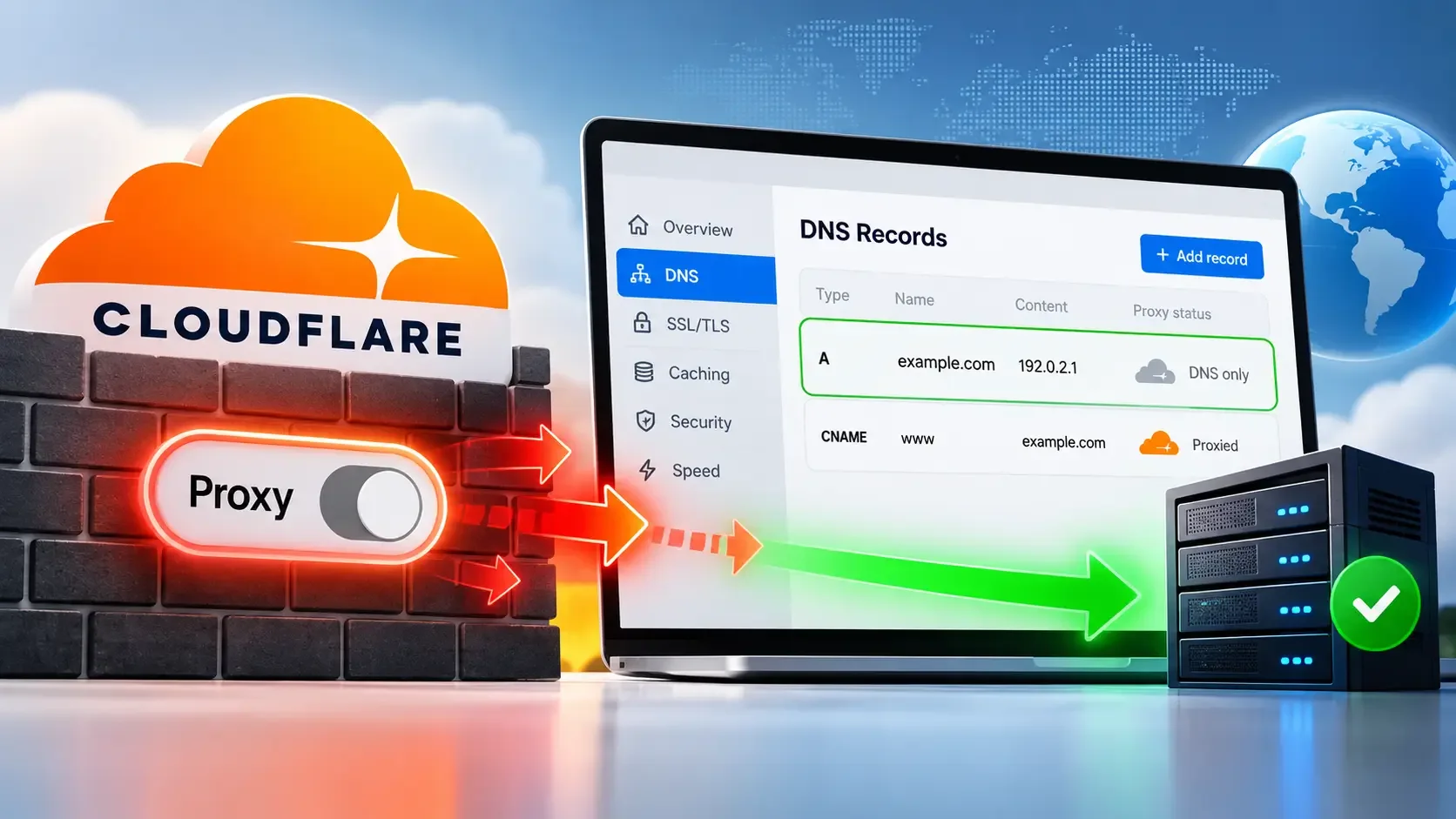
You can disable Cloudflare without deleting your domain or moving your website to another hosting provider. However, switching off Cloudflare's proxy changes how visitors connect to your server and a website that works through Cloudflare may not be ready to handle direct traffic.
The safest approach is to verify your origin server before making the change, disable only the Cloudflare functionality you no longer need and confirm that visitors can still access the website afterward. This prevents common problems involving SSL certificates, firewall restrictions and incorrect DNS routing.
Choose the Right Method to Disable Cloudflare
Cloudflare offers different ways to bypass its services. The correct option depends on whether you want to disable proxying for your entire website, bypass it for one hostname or temporarily stop serving cached content.
| Method | What it does | Best situation |
|---|---|---|
| Pause Cloudflare | Bypasses Cloudflare's reverse proxy for the domain | Temporarily removing Cloudflare from the website's connection path |
| Switch to DNS-only | Bypasses Cloudflare's proxy for a selected hostname | Disabling Cloudflare for one website or subdomain |
| Enable Development Mode | Temporarily bypasses Cloudflare's edge cache | Viewing recent website changes without disabling protection |
Pausing Cloudflare and switching to DNS-only remove proxy-dependent protection from the affected traffic. Development Mode does not. It leaves Cloudflare's proxy active while temporarily bypassing edge caching.
If you only want updated images, CSS or JavaScript files to appear immediately, Development Mode is usually more appropriate than disabling Cloudflare. It automatically expires after three hours and does not delete existing cached files.
For an actual proxy bypass, use one of the first two methods after completing the safety checks below.
Check If Your Website Works Without Cloudflare
Before disabling the proxy, confirm that your origin server can handle connections from ordinary visitors. Otherwise, your website may stop working as soon as browsers begin connecting directly.
Four conditions determine whether a conventional website can make this transition safely.
| What to check | Required condition | What could happen if it fails |
|---|---|---|
| HTTPS certificate | The origin presents a publicly trusted certificate for the hostname | Visitors encounter SSL certificate warnings |
| Firewall access | The origin permits legitimate direct visitor connections | Visitors experience connection failures |
| Origin routing | The origin serves the correct website for its hostname | Visitors see the wrong website or a server error |
| Server capacity | The origin can handle traffic without Cloudflare's caching and filtering | The website becomes slow or overloaded |
These checks matter most when your website has used Cloudflare for a long time. Its origin configuration may have been designed specifically for traffic arriving through Cloudflare rather than directly from visitors.
Check the Origin SSL Certificate
Cloudflare can provide a trusted HTTPS connection to visitors even when the origin uses a Cloudflare Origin CA certificate.
That arrangement works while Cloudflare handles the browser connection. However, Cloudflare Origin CA certificates are not publicly trusted by ordinary browsers connecting directly to your hosting server.
For example, a website using Full (strict) encryption may appear completely secure through Cloudflare but produce a NET::ERR_CERT_AUTHORITY_INVALID warning after proxying is disabled.
To avoid this, verify that the origin has a publicly trusted SSL certificate covering the affected hostname. Cloudflare's documentation confirms that direct browser connections require a different certificate arrangement when the origin uses its own CA.
Check Your Origin Firewall
Some website owners restrict their servers to accept web traffic only from Cloudflare IP addresses. This reduces direct access to the origin while Cloudflare handles incoming requests.
If that restriction remains active after proxying is disabled, ordinary visitors may be unable to reach the website.
Review your hosting firewall, cloud security groups and web server access restrictions. Prepare rules that permit the necessary direct connections without unnecessarily exposing unrelated services or administrative ports.
Avoid removing every firewall restriction just to make the website accessible. Your origin will no longer receive Cloudflare's normal proxy-level filtering once traffic bypasses the service.
Test the Website Before Changing DNS
You can test whether your origin responds correctly without changing your public DNS records.
For a server you administer, run the following command from a device outside the origin's local network:
curl -v --resolve example.com:443:203.0.113.10 https://example.com/ -o /dev/null
Replace example.com with your actual website hostname and 203.0.113.10 with the origin's public IP address.
The --resolve option directs the connection to your specified origin while preserving the hostname used for HTTPS. Because the command does not disable certificate verification, it can also reveal an untrusted or mismatched origin certificate.
A successful result should show that the connection completed and that the server returned the expected HTTP response. A redirect may be legitimate but its destination should be checked to ensure it does not depend on Cloudflare.
If the command reports a certificate error, connection refusal or timeout, investigate that condition before disabling the proxy.
Keep in mind that this test reflects connectivity from your testing location. You should also confirm that your server's firewall and capacity are suitable for public traffic.
Check for Cloudflare-Dependent Routing
A conventional website with a publicly reachable origin can often switch to direct connections. A website delivered through Cloudflare Tunnel may not have an equivalent public origin address.
For example, a hostname pointing to a cfargotunnel.com destination depends on Cloudflare's tunnel routing. Simply bypassing the proxy does not create a new public connection to that private application.
If your website uses Cloudflare Tunnel or another Cloudflare-dependent application route, establish and verify an alternative delivery path before removing that dependency.
How to Pause Cloudflare for Your Entire Website
If your origin passes the readiness checks and you want to temporarily bypass Cloudflare across the domain, use the pause option in your dashboard.
This method is useful when you need to determine whether a website problem originates in Cloudflare's reverse proxy or in your own hosting environment.
Steps to Pause Cloudflare
Sign in to your Cloudflare dashboard.
Select the account and domain you want to modify.
Open the domain's Overview page.
Under Advanced Actions, choose Pause Cloudflare on Site.
Confirm the change and allow it to take effect.
Cloudflare states that pausing generally takes five minutes or less. The domain continues using Cloudflare's DNS service, so you do not need to replace its nameservers merely to pause proxying.
Once Cloudflare is paused, requests that previously passed through its reverse proxy are directed toward the origin. Cloudflare's WAF, caching, proxy-based rules and edge SSL/TLS certificate delivery no longer protect those direct requests.
What Changes After Pausing?
Consider a WordPress website that currently uses Cloudflare for caching, HTTPS handling and redirect rules.
After pausing Cloudflare, WordPress may continue operating normally because its files and database remain on the same hosting server. However, any behaviour previously provided exclusively by Cloudflare must now be handled by the origin or another service.
For example, if Cloudflare enforced HTTPS redirects, confirm that your hosting server also redirects HTTP requests correctly. Otherwise, visitors may experience inconsistent redirects even though the website itself remains accessible.
Similarly, a server that previously handled only cache misses may suddenly receive substantially more traffic. This makes the readiness and capacity checks especially important for busy websites.
If you need to bypass Cloudflare only for one hostname, the DNS-only method below provides more precise control.
How to Disable Cloudflare for One Hostname
You do not need to pause Cloudflare globally if the change concerns only one website or subdomain.
Suppose example.com hosts your main website while app.example.com hosts a separate application. You can disable proxying for the application without necessarily changing how visitors access the main website.
Open your Cloudflare dashboard and navigate to DNS → Records. Locate the A, AAAA or CNAME record for the hostname you want to change.
Select Edit, change Proxy Status from Proxied to DNS-only and save the record.
The orange cloud changes to grey, indicating that Cloudflare is no longer configured to proxy that record directly.
Check All Records for the Same Hostname
There is an important detail that can prevent this change from working as expected.
If multiple A or AAAA records share the same hostname, Cloudflare treats them all as proxied when at least one remains proxied.
For example:
| Record | Hostname | Proxy status |
|---|---|---|
| A | app.example.com | DNS-only |
| AAAA | app.example.com | Proxied |
In this configuration, the hostname remains proxied despite the A record being set to DNS-only.
To bypass Cloudflare for that hostname, review the related address records and ensure their effective proxy configuration matches your intention.
Check Proxied CNAME Chains
CNAME records introduce another situation where changing a record to DNS-only may not remove Cloudflare from the connection path.
Consider this configuration:
| Hostname | Points to | Proxy status |
|---|---|---|
| www.example.com | origin.example.net | DNS-only |
| origin.example.net | Hosting destination | Proxied |
If both zones are configured within the same Cloudflare account, Cloudflare can continue proxying requests through the proxied CNAME target.
In other words, the first hostname displaying a grey cloud does not necessarily establish that visitors are bypassing Cloudflare.
Review the CNAME chain and verify the effective routing before assuming the change is complete. Cloudflare documents both this behaviour and the shared-hostname A/AAAA rule in its Proxy Status documentation.
Allow DNS Changes to Take Effect
Cloudflare's proxied DNS records normally use an automatic TTL of 300 seconds or five minutes.
After switching a record to DNS-only, some DNS resolvers may continue returning previously cached Cloudflare IP addresses until those responses expire. Local caches can sometimes extend the transition.
This does not necessarily mean the dashboard change failed. You should verify the resulting DNS responses before making additional configuration changes.
Verify That Cloudflare Is Actually Disabled
A saved dashboard setting does not prove that visitors are now reaching the origin directly. The most useful confirmation is whether DNS resolves to the expected destination and whether the origin receives the requests.
Check the DNS Response
On macOS or Linux, you can inspect the hostname's IPv4 and IPv6 DNS responses using:
dig +short A example.com
dig +short AAAA example.com
On Windows, nslookup example.com provides a similar basic lookup.
For a hostname configured with a direct A record, compare the returned IPv4 address with your known origin IP address.
If the hostname still resolves to Cloudflare's proxy addresses, investigate cached DNS responses, remaining proxied records and any CNAME chain involved.
For CNAME-based hosting, the final destination may be a hosting provider or load balancer rather than a single fixed IP address. In that case, compare the result against the expected hosting configuration instead of assuming every DNS-only website must resolve to one specific address.
Confirm That the Origin Receives Requests
After DNS indicates that the intended destination is being used, open the website in a browser and request a page that should be served directly by the origin.
If you control the server, check its access logs for the corresponding request. Seeing the request reach the expected origin from your testing connection provides stronger evidence that the new traffic path is functioning.
Test the homepage, an internal page and any essential function that could behave differently without Cloudflare. For example, a login form or checkout process may depend on cookies, redirects or security controls that should be verified after the connection changes.
If your website uses separate root-domain and www hostnames, check both. A working homepage at example.com does not guarantee that www.example.com has the same DNS and SSL configuration.
If Your Website Stops Working After Disabling Cloudflare
When a website becomes inaccessible immediately after the change, the resulting error often identifies which part of the direct-origin setup was not ready.
Instead of modifying several settings at once, use the visible symptom to narrow down the problem.
| Problem after disabling Cloudflare | Likely cause | Corrective action |
|---|---|---|
| Browser shows a certificate warning | Origin certificate is not publicly trusted | Install a valid public SSL certificate |
| Website connection times out | Direct traffic is blocked or the origin is unreachable | Check the hosting firewall and network |
| Wrong website or default server page appears | Origin hostname routing is incorrect | Correct the web server's virtual host configuration |
| HTTP no longer redirects to HTTPS | Redirect previously depended on Cloudflare | Configure the redirect at the origin |
| Website becomes unexpectedly slow | Origin is handling additional direct traffic | Review capacity or restore proxying |
| DNS still returns Cloudflare addresses | Cached DNS or another proxied record remains | Check effective DNS and CNAME routing |
These outcomes are not necessarily independent. For instance, a website can simultaneously have an untrusted origin certificate and firewall rules that reject ordinary visitor connections.
Correcting the certificate alone will not restore access if the connection is still blocked. Identify each failed readiness condition before attempting the change again.
Restore Your Previous Cloudflare Configuration
If you cannot immediately restore reliable origin access, reverse the setting you changed.
For a paused domain, return to the Overview page and resume Cloudflare. For an individual DNS record, open DNS → Records and switch the affected record back to Proxied.
Allow time for the updated connection path to take effect, then check whether the website returns to its previous behaviour.
Restoring proxying may bring back Cloudflare's normal handling of HTTPS, caching and firewall protection. However, it will not repair an underlying origin outage or an application that is already failing independently of Cloudflare.
If the problem continues even after restoring the original settings, inspect the origin's own availability rather than repeatedly toggling the proxy.
When Can You Safely Leave Cloudflare Disabled?
Cloudflare can remain disabled when the website's hosting infrastructure is independently capable of serving its visitors securely and reliably.
That means the origin must provide trusted HTTPS, accept the required connections, serve the correct hostnames and handle its expected traffic without relying on Cloudflare's proxy-dependent features.
For temporary troubleshooting, restoring Cloudflare after completing the investigation is generally preferable. Leaving the proxy disabled unnecessarily removes caching and security protections that may still be valuable to the website.
The key to disabling Cloudflare without downtime is preparing the origin before changing the traffic path. When you verify direct connectivity first, make the smallest necessary proxy change and confirm the resulting DNS and website behaviour, you greatly reduce the risk of interrupting access.