
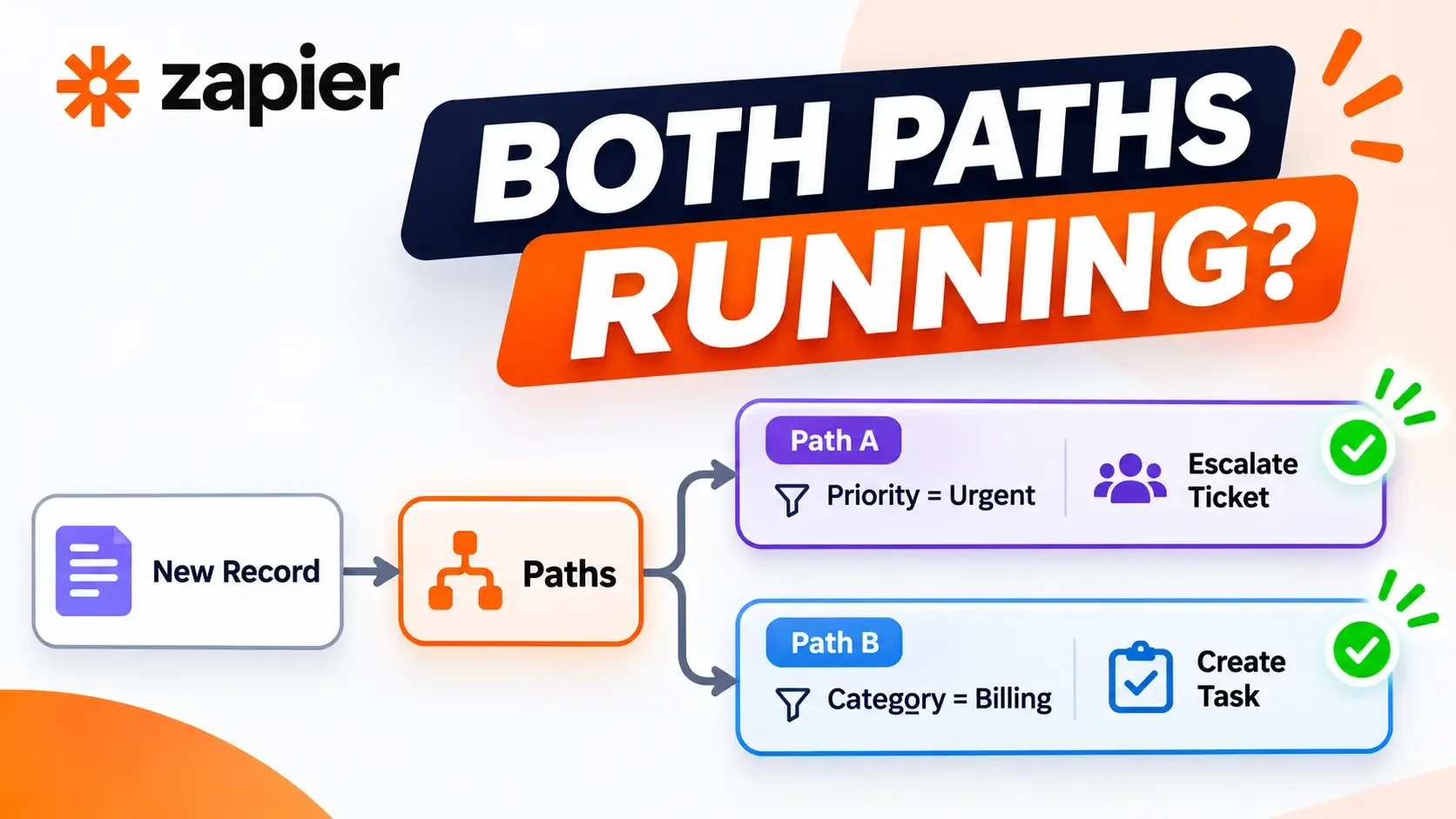
Your Zapier workflow receives a record, evaluates its conditions and executes both Path A and Path B even though only one branch should process that record. This can produce duplicate notifications, unnecessary CRM updates or separate actions for the same customer request.
Start by opening the affected execution in Zap History and checking whether both branches actually ran. If they executed within the same Zap run, inspect their conditions for overlapping matches, incorrect AND/OR logic or a branch configured to run unconditionally.
Zapier does not automatically restrict execution to one matching path. Multiple branches can execute when the same incoming data satisfies their rules, which means the solution depends on identifying exactly why each branch qualified.
Confirm Both Branches Executed in the Same Zap Run
Open Zap History and locate a run that produced the unexpected actions. Select the execution and examine the Paths step to identify which branches ran successfully and which were filtered.
If both branches completed actions during the same execution, the routing conditions are the primary area to investigate. If identical actions appeared in separate Zap runs, the issue may instead involve duplicate trigger events, another active automation or a workflow that triggers itself.
For example, a support-ticket automation might create two assignments for one incoming request. Finding both assignments within the same execution suggests that multiple paths qualified, while finding two executions indicates that the same ticket may have entered the automation more than once.
Distinguishing these situations prevents unnecessary changes to correctly configured paths. Once you establish that both branches ran in the same execution, examine their rules before modifying any actions.
Compare the Rules in Each Path
Open the affected Zap in the editor and locate its Paths step. Select the Path rules for the first branch to open the Rules setup & testing panel.
Zapier provides three path rule types: Custom rules, Always run and Fallback. Their behaviour differs, so confirm which option each branch uses rather than assuming that every branch evaluates custom conditions.
With Custom rules, the selected field, comparison operator and value determine whether a branch qualifies. When multiple conditions are joined using AND, all conditions must match; with OR at least one matching condition is sufficient.
An Always run branch executes without requiring the usual conditional checks. If Path B uses Always run, it can perform its actions even when Path A has already processed the incoming record.
A Fallback branch operates differently because it is intended to run when no other branch in the group qualifies. It is useful for handling unmatched records rather than providing an additional action for every incoming record.
Check the Always Run and Fallback Restriction
Zapier does not allow Always run and Fallback rules to be active together in the same path group. You can combine Custom rules with either option but Always run and Fallback are mutually exclusive at the group level.
Multiple branches within a group can use Always run, while only one branch can be designated as Fallback. These restrictions matter when deciding whether a branch should execute unconditionally or handle records that do not match any custom rules.
If the workflow requires one branch for every record and another branch only for unmatched records, do not attempt to combine incompatible rule types. Define the intended outcomes through appropriate Custom rules or reconsider how the workflow should be divided.
Before editing, record the current conditions and actions in the affected branches. This gives you a reference if the revised configuration needs to be restored.
An Urgent Billing Ticket That Activates Two Paths
Consider a hypothetical customer-support automation that receives incoming tickets from a help desk. The business wants urgent tickets to reach an escalation team, while routine billing requests should create tasks for the billing department.
The Zap contains two branches with the following conditions.
Path A — Urgent escalation
Priority → (Text) Exactly matches → Urgent
Path B — Billing assignment
Category → (Text) Exactly matches → Billing
Both conditions are valid individually but they are not mutually exclusive. A ticket marked Urgent with the category Billing satisfies both conditions, allowing the automation to escalate the ticket and create a routine billing assignment.
The problem is not necessarily that Zapier made an incorrect decision. The conditions do not express the business requirement that urgent escalation should take priority over routine billing assignment.
Separate Urgent and Routine Tickets
Assume the help desk uses two supported priority values, Urgent and Routine. Urgent tickets should reach the escalation team regardless of category, while only routine billing tickets should create tasks for the billing department.
Keep Path A configured to recognize urgent tickets. Then modify Path B so that it requires both the Billing category and the Routine priority.
The corrected conditions become:
Path A — Urgent escalation
Priority → (Text) Exactly matches → Urgent
Path B — Routine billing assignment
Category → (Text) Exactly matches → Billing
AND
Priority → (Text) Exactly matches → Routine
These conditions prevent urgent billing tickets from qualifying for the routine billing branch. Path B now requires the ticket to satisfy both conditions before the billing assignment can execute.
The expected results are:
| Ticket priority | Ticket category | Expected branch |
|---|---|---|
| Urgent | Billing | Path A |
| Routine | Billing | Path B |
| Urgent | Technical | Path A |
| Routine | Technical | Neither |
| Missing | Billing | Neither |
The final two cases show records that the workflow does not currently handle. If they require attention, configure an appropriate additional branch or Fallback action rather than weakening the existing conditions.
For example, an unmatched ticket could create an internal review task so that a staff member can determine the correct department. This is safer than sending every unrecognized ticket to a department that may not be responsible for it.
If the help desk supports additional priority values, adapt the conditions to those actual values. Do not assume that every ticket outside the Urgent category should automatically qualify as Routine.
Make Sure Path B Uses AND Instead of OR
Adding the correct fields does not solve the problem when the relationship between them is wrong. Path B must require both the Billing category and Routine priority.
If those conditions are joined using OR, an Urgent Billing ticket can qualify for Path B simply because the category matches. The automation could then execute the escalation action and the routine billing action again.
Return to Path B's Rules setup & testing panel and inspect the relationship between its conditions. Change OR to AND when the branch should continue only if both requirements are satisfied.
Use a representative Urgent Billing ticket to test the revised rules. Path A should qualify, while Path B should report that the record would not continue through that branch.
Then test a Routine Billing ticket to confirm that Path B still accepts legitimate billing requests. This second test matters because a condition that blocks unwanted records can also accidentally exclude valid ones.
Check Whether Zapier Is Evaluating the Correct Field
Sometimes the branch conditions appear correct but the selected field does not contain the information the workflow was designed to evaluate.
Suppose a help desk provides both Ticket Priority and Customer Priority properties. Ticket Priority describes the urgency of the current request, while Customer Priority identifies the customer's service level.
If the automation accidentally uses Customer Priority, a routine request from a high-priority customer might enter the escalation branch. The mapping could appear reasonable during testing unless the sample record clearly distinguishes the two properties.
Open the affected execution and inspect the data returned by the step supplying the path conditions. Compare the actual field values with the properties selected in the Paths rules.
If the wrong property is selected, return to the editor and replace it with the intended source field. Test the revised condition using a record containing both properties so that their different values are visible.
If the expected field is empty, investigate the source data before changing the comparison rule. A missing field and an incorrect condition can produce similar symptoms but they require different corrections.
BusinessTally's guide to Zapier filters showing missing values explains how to distinguish empty source data from incorrect mappings and condition failures. Those checks are relevant when a Paths branch evaluates a value that differs from the information shown in the preceding step.
The objective is to establish whether the branch is receiving the correct information before deciding that its conditional logic is defective.
Why Another Path Can Run After an Error
An action failure in an earlier branch does not necessarily prevent later paths from executing. Zapier's documentation confirms that subsequent paths can still run when an earlier path encounters an error.
Imagine the urgent escalation branch qualifies for a ticket but its notification action fails because the connected application is unavailable. A later branch can still execute if its own conditions are satisfied, even though the escalation action did not complete.
This distinction matters because an action error and an incorrect routing decision are separate problems. The first branch may have qualified correctly while the destination application failed to perform its requested action.
Check the action that returned the error and determine whether the later branch independently qualified under its conditions. Do not assume that the second branch was activated as an automatic recovery mechanism.
A Fallback branch is not a general replacement for error handling. Its intended purpose is to handle situations where no other branch qualifies, subject to Zapier's documented behaviour for features such as Autoreplay.
If the business needs a separate process when an action fails, use an appropriate error-handling configuration rather than deliberately overlapping path conditions. Overlapping branches can create duplicate actions whenever the original action succeeds.
Check the Final Status When a Path Contains a Delay
Zapier runs qualifying branches sequentially rather than processing every path simultaneously. An earlier branch containing a Delay action can therefore postpone actions in a later qualifying branch.
The execution history may temporarily show later steps as Filtered while the workflow remains delayed. Zapier documents that these statuses can change after the delay finishes and execution resumes.
For example, Path A might contain a Delay action that holds processing for several hours. During that time, Path B may appear not to have executed even though its conditions could qualify when the workflow continues.
Check whether the overall Zap run is still delayed before interpreting the later branch's status. Once the delay has completed, inspect the final result to determine whether the branch actually ran or was excluded by its conditions.
Changing the position of the branches does not make overlapping conditions mutually exclusive. The routing problem must still be corrected through the conditions that determine whether each branch qualifies.
Rule Out an Upstream Lookup Problem
Some workflows use a search action before Paths to determine whether a customer record already exists. If that search fails because its required input is missing, the workflow has not reliably established whether the record should be created or updated.
For example, a Google Sheets lookup with an empty Lookup Value can not provide a dependable found-or-not-found result. Treating the failure as permission to create a new record could introduce duplicates.
If the preceding Google Sheets action reports a missing input, resolve that issue before modifying the branch conditions. BusinessTally's guide to Zapier Google Sheets lookup values that are missing explains how to trace a blank lookup value to its source and correct the mapping.
When the search completes successfully but multiple paths still qualify for the same result, return to the branch conditions. The lookup and the routing rules should be investigated as separate stages of the workflow.
Test the Revised Conditions Before Publishing
After correcting the rules, test each branch independently in the Zap editor. Use sample records that represent the outcomes the business expects the automation to handle.
For the support-ticket example, begin with an Urgent Billing ticket and confirm that only Path A qualifies. Then test a Routine Billing ticket and verify that Path B qualifies without activating the escalation branch.
Also test an Urgent Technical ticket and a Billing ticket with no priority value. These cases help establish whether the revised rules handle incomplete or unexpected information safely.
Avoid repeatedly testing actions against live customer records when the workflow creates tasks, sends messages or updates business data. Use controlled records and nonproduction destinations wherever possible.
Once the conditions pass their tests, publish the revised Zap and submit a controlled record through its trigger application. Give the test record a recognizable identifier so that its execution can be located in Zap History.
Confirm that the intended branch completed its actions and that the unwanted branch was excluded by its conditions. Check the destination application to verify that the expected task, notification or customer record was created exactly once.
A successful test in the editor establishes that the configured conditions behave as expected for the selected sample. The controlled execution provides additional evidence that the published workflow processes incoming records correctly.
When Both Branches Continue to Execute
If the revised workflow still executes both branches, confirm that the corrected conditions were published and that the affected execution used the updated configuration. An unpublished editor change does not establish that the active Zap is using the same rules.
Check for remaining OR conditions, unintended Always run settings, and additional branches whose rules still overlap. Compare the relevant values from the affected execution with the conditions the business intended to enforce.
If the unwanted actions originate from separate Zap runs, investigate the triggering application and other automations connected to the same records. A duplicate trigger or feedback loop requires a different correction from mutually exclusive path conditions.
When the cause remains unclear, collect the affected Zap run links, approximate execution times, branch conditions, relevant field values and expected routing outcome. Include whether the unwanted actions occurred within one execution or across separate runs when contacting Zapier Support.
Remove customer information, credentials and other sensitive data before sharing screenshots or execution details. Avoid replaying completed runs that already created records or sent notifications, since doing so may generate additional unwanted actions.
The routing issue is resolved when a controlled incoming record qualifies for only its intended branch and produces the expected downstream result. If the rules behave correctly but duplicate actions persist, the remaining evidence should guide the investigation toward trigger duplication, another active automation or the destination application's behaviour.