
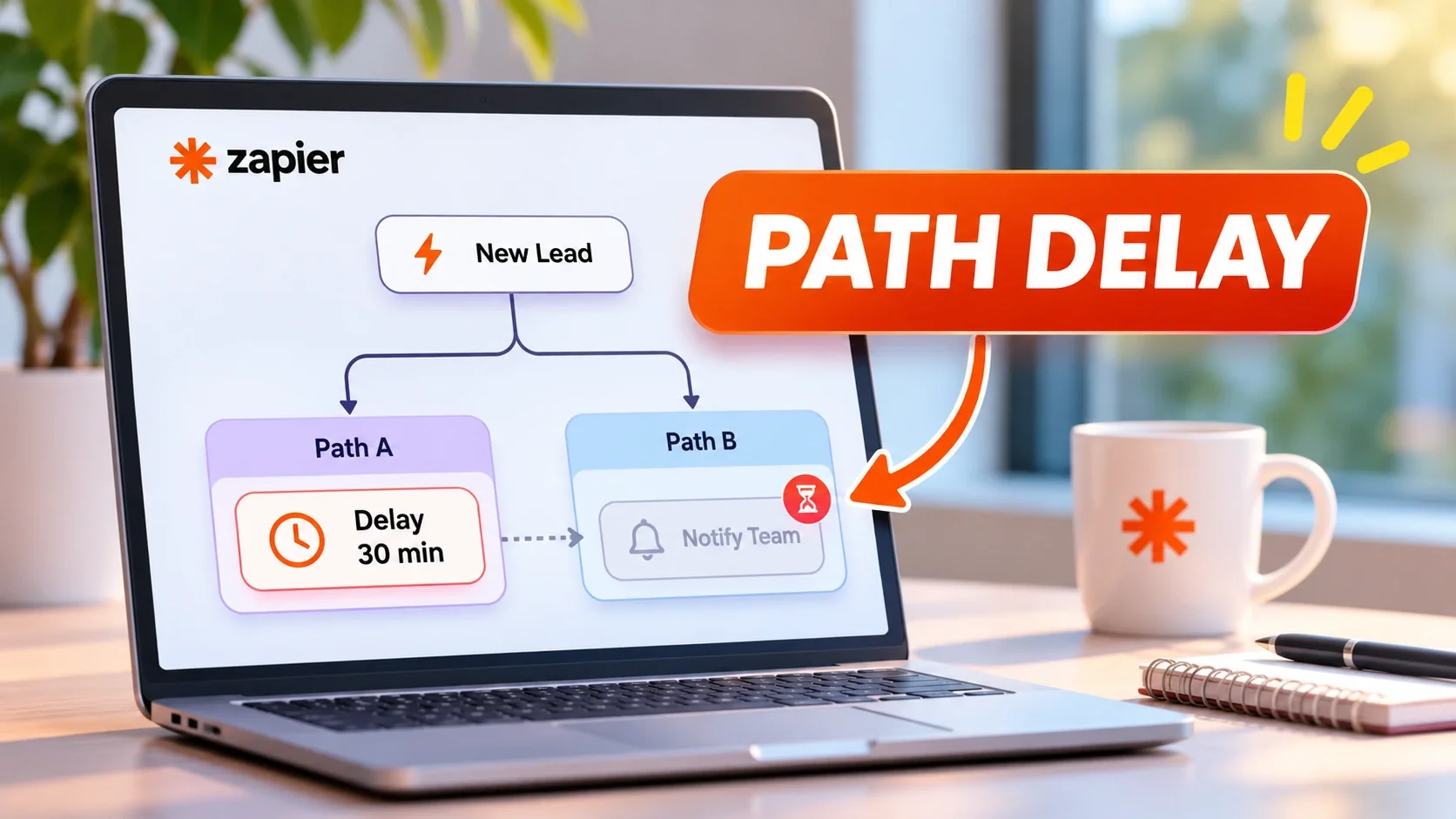
A Zapier workflow can receive its trigger on time but delay actions in a later Paths branch. The delayed action may eventually succeed without an error, leaving a business notification, customer update or other time-sensitive task running much later than expected.
Start by checking whether an earlier matching branch contains a Delay step or another slow action. Zapier processes qualifying Paths branches sequentially, meaning a later branch must wait for an earlier one to finish.
The solution depends on where the delay occurs. You may need to move an urgent action earlier, change how the workflow is structured or separate independent actions into different Zaps.
Check the Delayed Run
Open the affected Zap in the Zapier editor and select Zap runs from the left sidebar. Find an execution where the later branch ran late, then inspect its trigger, branch sequence and individual actions.
Zapier provides run details showing the overall execution status, individual step statuses and the data received or returned by each action. These details help establish whether the delay started before the Paths step or within a qualifying branch.
Check three things:
Trigger timing: Confirm that Zapier received the original event when expected. If the trigger arrived late, investigate the source application or triggering mechanism instead.
Earlier branch: Determine whether it qualified for execution and reached a Delay or another action that took time to finish.
Later branch: Confirm that its conditions should also match the incoming record and whether its actions started after the earlier branch completed.
The strongest indication of sequential blocking is a run where both branches qualify but the later branch cannot begin until processing in the earlier branch has finished.
If the later branch never qualifies, the issue is different. Incorrect or overlapping path conditions should be investigated separately rather than treated as an execution-timing failure.
Find the Blocking Action
Inspect the actions inside the earlier matching branch. A Delay by Zapier step is a likely cause but other actions that take time to complete may also affect sequential execution.
Zapier identifies Delay, Code, Looping, Digest and Sub-Zap as features that can influence how workflows behave under sequential execution.
The presence of one of these actions does not automatically establish the cause. Examine the affected run to identify where processing actually waited.
Consider a hypothetical lead-management workflow.
Path A — Customer follow-up
Condition: Lead Priority equals High.
Action: Delay For 30 minutes.
Action: Send a customer follow-up email.
Path B — Sales notification
Condition: Lead Region equals West.
Action: Send a Slack notification.
A new inquiry arrives with High priority and its region set to West. Both branches qualify because the record satisfies both conditions.
The business expects the sales team to receive an immediate notification, while the customer email should wait 30 minutes.
However, Path A executes first and reaches its Delay action. Under sequential execution, Path B cannot begin until the earlier branch finishes processing.
The Slack notification therefore arrives late even though the Slack connection may be functioning correctly.
Before removing the Delay, determine whether it serves a legitimate purpose. The customer follow-up may need to remain delayed even though the internal notification should happen immediately.
Move the Urgent Action
When an important action appears after an unnecessary Delay within the same branch, moving it earlier may resolve the problem without changing the rest of the workflow.
Suppose a branch currently follows this sequence:
Delay For 30 minutes.
Notify the assigned employee.
Send a customer follow-up email.
If the employee should receive the notification immediately, change the sequence to:
Notify the assigned employee.
Delay For 30 minutes.
Send the customer follow-up email.
The internal notification can now run before the waiting period while the customer communication retains its intended timing.
Prepare this change in a Zap draft. Move the notification action before the Delay, then inspect its connected account and field mappings.
An action moved earlier may lose access to information produced by steps that previously came before it. Confirm that every required field is still available and correctly mapped.
Test the action using a controlled record before publishing the revision.
This solution only removes the wait when the urgent action and Delay are within the same branch. Moving an action to the beginning of Path B will not eliminate the wait caused by Path A under sequential execution.
Also avoid moving actions ahead of required business checks. A payment confirmation should not run before the workflow has verified that the payment succeeded.
Fix Branch Order
Zapier's Paths documentation explains that matching branches run sequentially and that their execution order affects when actions occur.
Branches are processed according to their execution structure. However, changing how a branch is displayed in the editor is not necessarily the same as changing when it executes.
Zapier explicitly states that visually repositioning a branch does not influence its execution timing.
Therefore, simply dragging Path B to another position is not a reliable solution.
If the urgent process needs to run before the slower branch, the workflow may need to be restructured rather than visually rearranged.
Begin by recording the conditions, actions and field mappings for each affected branch. Work in a draft or duplicate Zap so the existing configuration can be restored if necessary.
If the business requirements permit it, rebuild the relevant Paths structure with the urgent process in the earlier execution position and the delayed process afterward.
For example, a replacement structure might contain:
Path A — Immediate notification
Condition: Lead Region equals West.
Action: Send Slack notification.
Path B — Delayed follow-up
Condition: Lead Priority equals High.
Actions: Delay For 30 minutes, then send the customer email.
This is a structural change, not a visual drag operation. Confirm the actual execution sequence in a controlled run before relying on the revised arrangement.
Be careful when rebuilding Paths. Zapier documents that deleting a Paths step deletes its associated path groups, including nested paths.
Do not delete the existing production Paths step simply to experiment with execution order.
If the required order cannot be established safely or the workflow contains numerous dependencies, separate the time-sensitive process into another Zap instead.
Another option is moving an action before the Paths step when it genuinely applies to every incoming record.
For example, if every new inquiry must create an internal audit record, that action can run before conditional routing.
New inquiry → Create audit record → Evaluate Paths
This avoids placing a universally required action behind a branch that may contain a long Delay.
However, an action that should run only for certain customers must retain its qualification rules. Moving a conditional notification before Paths without preserving those conditions could send unwanted messages.
Separate Independent Zaps
When an earlier branch must retain its Delay and a later branch requires immediate execution, separating the processes is often the clearest solution.
Return to the customer-inquiry example. Sending an internal Slack notification and scheduling a customer follow-up are separate responsibilities, even though both begin with the same event.
They can be organized as independent Zaps.
Zap 1 — Sales notification
New inquiry → Filter by region → Send Slack notification
Zap 2 — Customer follow-up
New inquiry → Filter by priority → Delay For 30 minutes → Send follow-up email
The sales notification no longer depends on the delayed follow-up workflow completing.
To implement this arrangement, identify the original trigger and the conditions used by each branch.
Create a separate Zap for the urgent notification using the appropriate source trigger. Add a Filter by Zapier step when necessary to restrict the notification to qualifying records.
For example, the sales notification should continue only when the lead's region equals West.
Configure the Slack action with the correct destination channel and source fields. Test the configuration using a recognizable sample record.
Keep the delayed follow-up process separate, preserving its original priority condition and required waiting period.
Before enabling the replacement in production, identify the notification action in the original workflow and plan its removal or retirement.
Leaving both notification actions active could generate duplicate messages for the same inquiry.
Also consider task usage and the behaviour of the source application. Multiple workflows triggered by the same event should have clearly defined responsibilities.
This arrangement is appropriate when the processes can operate independently. If the second workflow requires data created by the first, that dependency must still be preserved through a suitable design.
Inspect Queue Delays
A branch may also wait because it contains Delay After Queue rather than a fixed Delay For action.
Delay After Queue processes queued runs one at a time, with spacing between them. It can help prevent excessive simultaneous requests or conflicting updates to connected applications.
Open the Delay action in the affected branch and inspect its selected event.
If it uses Delay After Queue, check the queue title and configured waiting interval.
Zapier allows multiple workflows to share a queue using the same queue name. An earlier branch may therefore be waiting for work initiated by another Zap.
Consider an inventory automation that uses a shared queue to avoid simultaneous updates to the same records.
During a busy period, the earlier Paths branch reaches the queue and waits for previously scheduled updates. A later matching branch remains blocked until the earlier branch finishes.
Before changing the queue, establish why it was configured.
Removing the queue or changing its name may permit concurrent updates and reintroduce rate-limit problems or record conflicts.
If the urgent notification does not depend on the queued inventory update, moving it into a separate workflow may resolve the delay without removing the protection provided by the queue.
Rule Out Branch Conditions
A branch that never qualifies should not be confused with one that starts late.
For example, Path A may handle High-priority inquiries while Path B handles inquiries from the West region. A High-priority inquiry from another region should execute Path A without executing Path B.
That is expected conditional behaviour, not an execution delay.
Similarly, when both branches execute but only one should, the actual problem is overlapping conditions.
BusinessTally's existing guide on Zapier Paths running both branches explains how to diagnose and correct that separate problem.
Use that guide when the wrong branches execute. Continue investigating sequential execution when the intended branches qualify but an earlier action postpones the later one.
Protect Waiting Runs
Important: Review active delayed runs before changing a production Zap.
Zapier warns that modifying a Zap while an execution is waiting in a Delay can prevent that execution from continuing when the delay ends.
This includes changes to existing actions as well as adding or removing steps.
Turning the Zap off while a Delay is pending creates another risk. Zapier states that actions scheduled to resume while the Zap is off will not automatically execute after the Zap is turned on again.
For businesses, these behaviours can lead to missed customer follow-ups, scheduled messages, record updates or other pending actions.
Before publishing structural changes:
Review Zap History for delayed runs.
Record the affected run IDs and outstanding actions.
Identify business-critical work that has not completed.
Prepare the replacement workflow without immediately disrupting the published version.
Establish how pending actions will be handled before switching workflows.
Creating a draft allows the revised configuration to be prepared while the published Zap continues operating. However, it does not guarantee that previously delayed runs will survive every change to the published workflow.
If important customer communications or transactions are waiting, consider introducing the replacement workflow separately while allowing the original process to complete its outstanding work.
Do not replay completed runs without checking their results. Repeating an action could create duplicate records, send another customer message or repeat a financial operation.
When the impact on pending runs is uncertain, consult Zapier Support before modifying the production workflow.
Test the Fix
After making the correction, run a controlled test through the workflow's normal trigger.
Use a recognizable sample identifier such as PATH-TIMING-TEST-01. Configure the record so that it qualifies for both intended business actions.
For the lead-management example, use a High-priority inquiry from the West region.
Confirm the following:
Trigger: Zapier receives the test event at the expected time.
Notification: The Slack action executes without waiting for the unrelated follow-up Delay.
Follow-up: The customer communication retains its intended waiting period.
Conditions: Only qualifying records receive each action.
Duplicates: The destination receives no unintended duplicate notifications or records.
Next, test a record that qualifies for only one of the original branches. This confirms that restructuring the workflow has not accidentally changed which records receive notifications.
A successful individual step test does not establish that the entire workflow executes in the intended order. Verify the timing through a complete run after publishing the revised configuration.
If the notification remains late, return to the execution details and identify where processing first stops.
When the trigger itself arrives late, investigate the source application or triggering mechanism. When the notification action starts promptly but completes slowly, inspect the destination integration.
If the earlier Paths branch still blocks the later one, confirm that the published workflow contains the intended structural changes.
When the cause remains unclear, collect the Zap ID, affected run IDs, relevant timestamps and the expected versus observed execution order.
Include the published Zap version and identify the specific branch containing the waiting action. Remove confidential customer information and credentials before sharing diagnostic details with Zapier Support.
The problem is resolved when urgent actions execute at the intended time without disrupting necessary delays, changing qualification rules or creating duplicate business activity.