
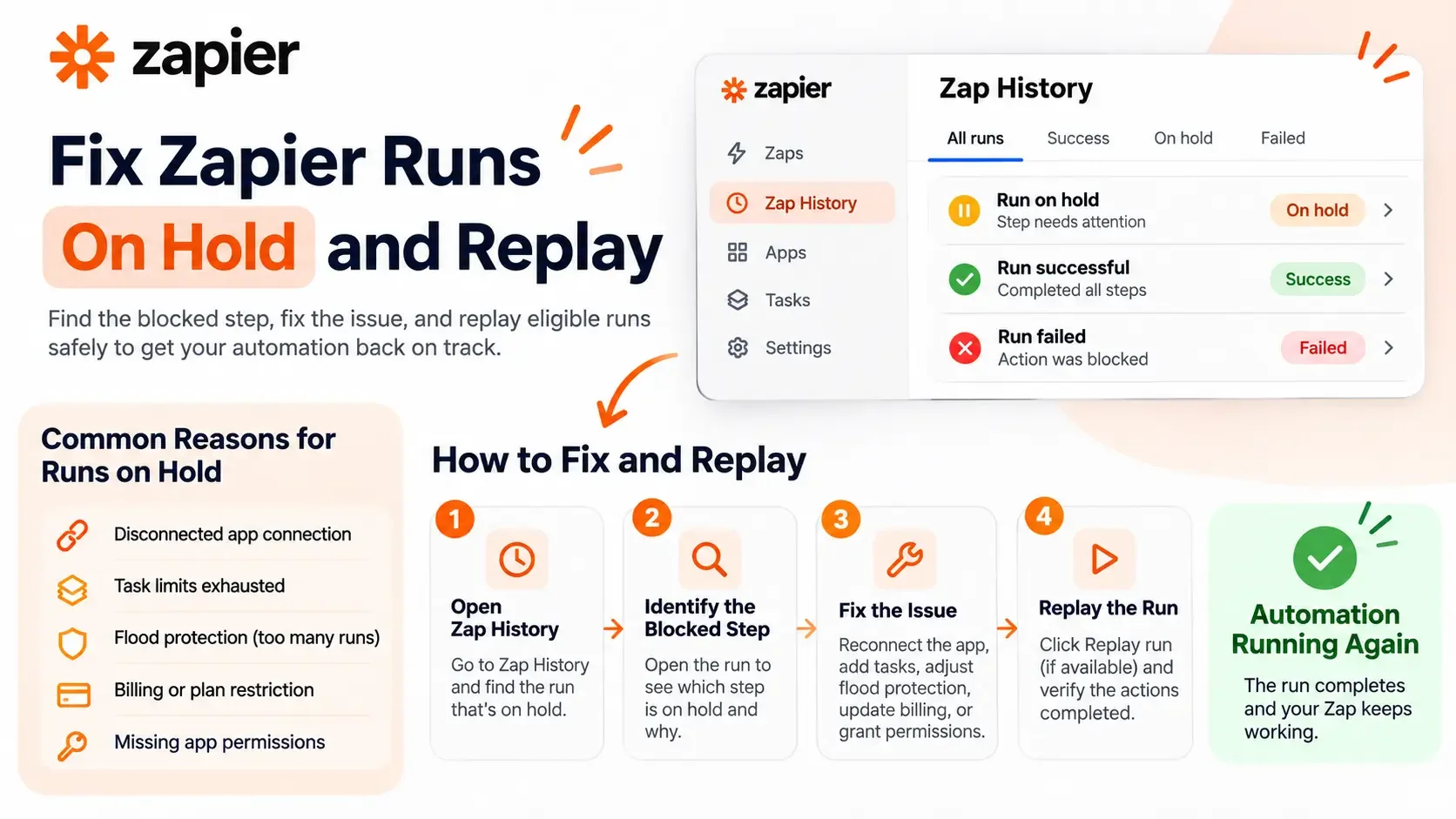
Your Zapier automation appears active but customer inquiries are not reaching your CRM, spreadsheet updates are missing or important notifications have stopped arriving. When you open Zap History, several executions show an On hold status instead of completing normally.
This does not necessarily mean the automation is broken or that its incoming data has disappeared. Zapier can hold executions when an application connection expires, an account reaches its task allowance, a large batch of events triggers flood protection or permissions prevent an action from continuing.
The correct solution depends on where processing stopped and what restriction Zapier reported. This guide explains how to identify the blocked step, correct the underlying problem and replay eligible runs without unnecessarily repeating business actions that already succeeded.
What Does On Hold Mean in Zapier?
An On hold status means Zapier has interrupted an execution because something must be resolved before processing can continue. Unlike a configured delay, the execution is waiting for a restriction to be corrected rather than simply waiting for a scheduled time.
A Zap run represents one execution of an automation, while a step run represents an individual operation within that execution. An entire Zap can therefore show On hold even when some earlier actions completed successfully.
Imagine a workflow that receives website inquiries, creates CRM contacts, notifies a sales team and saves information in a spreadsheet. If the CRM connection becomes invalid, the incoming inquiry may still reach Zapier but the contact-creation step cannot proceed.
Zapier retains trigger information for held executions so eligible runs can be recovered after the restriction is resolved. However, recovery remains subject to replay eligibility, account permissions and time limits.
Find the Step That Stopped
The first useful action is to inspect the interrupted execution rather than reconnecting applications or changing workflow settings. Zap History can show which operation stopped and whether earlier steps completed.
Open the Affected Run
Follow these steps in a Classic Zap:
Sign in to Zapier and open Zap History.
Use the available filters to find the affected Zap and date range.
Locate an execution showing On hold.
Open the run and examine its individual steps.
Identify the first step showing On hold.
Select that step and read its available status details.
Record the execution time, run ID and reported restriction before changing anything. These details help you investigate the correct event and are useful if the problem eventually requires Zapier Support.
You can also inspect recent executions through the Zap runs panel in the Zap editor. Both locations provide information about the run, although their available controls differ.
Examine the Input and Output
Individual steps may contain Data In and Data Out sections. Data In shows the information supplied to an action, while Data Out displays information returned by the application when available.
Suppose a CRM action receives a customer's name and email address but does not return the expected contact information. The missing output suggests that the action did not complete as expected, although the status details are still needed to establish why.
A held step may have limited output because processing stopped before the application returned a response. Do not assume that missing output automatically proves an authentication problem.
Compare With a Successful Run
If the Zap previously worked, open an earlier successful execution and compare its configuration and results with the held run. Pay attention to the selected application account, incoming information and the step where processing stopped.
If one action suddenly becomes held while other workflows continue normally, investigate that action's connection and permissions first. If several unrelated Zaps stop around the same time, account-level restrictions such as task usage or billing become important possibilities.
The comparison should help narrow the investigation rather than replace the actual error or hold message. Similar symptoms can result from entirely different restrictions.
Check the Run Status Carefully
An automation that fails to produce the expected result is not necessarily on hold. Zapier uses several execution statuses and confusing them can lead to unnecessary troubleshooting.
For example, reconnecting an application will not resolve a record rejected by a Filter step. Similarly, replaying a held run is irrelevant when the trigger never detected the original event.
| Run status | What it means | What to investigate |
|---|---|---|
| On hold | A restriction prevents processing from continuing | Held step, connections, account limits or permissions |
| Errored | An action encountered an error | Error details, input values and application response |
| Delayed | A configured Delay step is postponing execution | Delay settings and expected continuation |
| Scheduled | An errored execution is awaiting an automatic retry | Autoreplay settings and previous errors |
| Filtered | Filter conditions stopped processing, or later steps have not run | Filter step and earlier execution statuses |
| Needs review | An execution requires human intervention | Pending review or approval request |
| Safely halted | Processing stopped intentionally under a supported condition | Search results or the action's stopping condition |
One potentially misleading detail is that steps following a held action may display Filtered. This does not necessarily mean a Filter step rejected the information, because Zapier can use that status for downstream actions that have not executed.
However, when an actual Filter step stops the workflow, the problem requires a different investigation. Our article about fixing missing values in Zapier filters explains how to check empty inputs, incorrect field mappings and conditions that reject otherwise valid records.
What if No Run Appears?
If the expected business event never appears in Zap History, it may not have triggered the automation at all. There is no existing held execution to replay when Zapier never created a run for that event.
This distinction is particularly important for Google Sheets integrations. For example, deleting previously processed spreadsheet rows can allow new records to occupy row numbers that Zapier already recognizes.
Our guide to Google Sheets rows not triggering after deleted rows explains that separate problem. Its recovery process differs from replaying an execution that already exists in Zap History.
Match the Hold Reason With the Fix
Once you confirm that an execution is genuinely on hold, the next step is identifying the restriction responsible. Zapier documents several causes involving application authentication, account capacity, billing, permissions and workflow limits.
The following table connects the most relevant causes with the action that should be investigated first.
| Possible cause | What to check | Appropriate correction |
|---|---|---|
| Disconnected application | Authentication status of the affected connection | Reconnect the correct account |
| Task allowance exhausted | Account task usage | Restore sufficient task capacity |
| Flood protection | Large batch of incoming trigger events | Verify the events and replay eligible runs |
| Payment issue | Account billing information | Correct the payment problem |
| Trial ended | Features included in the active plan | Restore an eligible subscription |
| Plan downgrade | Features required by existing workflows | Change the plan or revise the workflow |
| Connection access revoked | Connection sharing and Zap ownership | Restore authorized access |
| Enterprise app restriction | Organization's application access policy | Obtain administrator approval |
| Step limit exceeded | Number of workflow steps | Divide the automation into smaller Zaps |
The table is a starting point rather than a substitute for the displayed restriction. A workflow may also experience multiple problems, such as a disconnected application combined with an exhausted task allowance.
Resolve the issue identified in the affected run before changing unrelated settings. This reduces unnecessary modifications and helps preserve the original workflow for recovery.
Fix a Disconnected App Connection
An application connection can become invalid after changes to authentication, permissions or the connected account. When this happens, Zapier may receive a trigger event but can not perform the action that requires the disconnected application.
Suppose a business uses Zapier to create CRM contacts from website inquiries. If the CRM connection expires, new inquiries may continue reaching Zapier while the contact-creation step remains held.
Reconnect the Correct Account
Follow this process:
Open the affected Zap and identify the held action.
Check which application account the action uses.
Open Zapier's app connection management area.
Locate the specific connection used by the held step.
Select the available reconnect option if authentication is required.
Complete the application's authorization process.
Return to the Zap and verify that the intended account remains selected.
The account selection matters when several accounts from the same application are connected. Reconnecting a personal Google account will not necessarily restore access to a spreadsheet owned by a separate business account.
After reconnecting, confirm that the connection can access the resource required by the workflow. A successful login alone does not prove that the account still has permission to use a particular project, database or spreadsheet.
If Reconnecting Does Not Work
Check whether the required resource was moved, deleted or transferred to another owner. The connected account may authenticate successfully while lacking permission to perform the intended action.
For example, a spreadsheet owner might remove an employee's access without changing the employee's Google account credentials. Zapier could still authenticate that account but fail when attempting to access the restricted spreadsheet.
Restore the necessary permissions or select an appropriate accessible resource. Once the restriction is corrected, return to the held execution and use the supported replay method.
When the Connection Is Not the Problem
Not every unsuccessful application action requires reconnection. An action can fail because the information supplied by an earlier step is missing or incorrectly formatted.
For example, a Google Sheets Lookup Spreadsheet Row action may fail because its required Lookup Value is blank. Our guide to fixing a missing Google Sheets Lookup Value in Zapier explains how to compare the lookup action's input with the preceding step's output.
A different problem occurs when a Webhooks by Zapier Custom Request receives an HTTP 400 response. The destination API may reject the request because of invalid fields, unexpected data types or an incorrectly structured payload.
Our Zapier Custom Request 400 troubleshooting guide covers that situation. These are separate error investigations, so check the actual execution status before applying either solution.
Check Your Task Allowance
Zapier plans include monthly task allowances, and successful actions that count toward task usage consume those allowances. When an account reaches its applicable limit, additional executions can become held instead of continuing normally.
This restriction can affect several workflows simultaneously. A business may discover that its CRM updates, order notifications and spreadsheet reporting all stopped because the account no longer has sufficient task capacity.
Confirm the Restriction
Open your Zapier account's task usage information and compare the recorded consumption with the allowance available under your plan. Look for a notification indicating that the account has reached or exceeded its limit.
Then return to the affected execution and confirm whether task availability is responsible for the hold. Reconnecting individual applications will not address an exhausted account allowance.
Restore Available Tasks
Depending on your subscription and available billing options, you may be able to wait until the allowance resets, upgrade your plan or enable supported pay-per-task billing. The appropriate option depends on how urgently the unfinished business actions need to be processed.
After sufficient capacity becomes available, return to Zap History and review the eligible held runs. Do not assume that restoring task capacity automatically completes every previously interrupted execution.
Investigate Unexpected Consumption
Before purchasing additional capacity, determine whether the increase in tasks reflects legitimate activity. An automation loop or repeatedly processed source records can consume tasks much faster than expected.
Suppose a workflow normally creates 30 CRM records a day but suddenly generates several hundred executions. The increase might reflect a genuine marketing campaign, duplicated submissions or two automations repeatedly responding to changes made by one another.
Compare recent trigger records and execution times to identify unnecessary repetition. If the same business event repeatedly starts new workflows, investigate the trigger configuration before increasing the task allowance.
Investigate Flood Protection
Zapier uses flood protection to prevent unexpectedly large batches of incoming events from automatically producing excessive actions. This safeguard is particularly relevant to automations that use polling triggers.
A polling trigger periodically checks an application for new records. Under Zapier's documented default behaviour, 100 or more incoming events detected together can activate flood protection and place those executions on hold.
Example of a Large Spreadsheet Import
Imagine a company uses Zapier to create inventory records whenever new rows appear in a spreadsheet. Employees normally add a few rows throughout the day, allowing the automation to process them without interruption.
One afternoon, a manager imports 400 historical inventory records into the same spreadsheet. When Zapier checks for new information, it may detect the unusually large batch and hold the events for review.
The spreadsheet and destination application may both be functioning correctly. Zapier is protecting the account from processing a volume of events that might have been introduced unintentionally.
Check the Incoming Records
Before replaying the batch:
Open the application that supplied the trigger events.
Check whether a bulk import or unusual update occurred.
Determine whether the records represent genuine new activity.
Compare the incoming records with existing destination records.
Review Zapier's flood-protection notification.
Confirm which events should be processed.
Replay eligible runs after resolving the restriction.
A historical import may contain customer records or orders that already exist in another system. Replaying the entire batch without checking can generate unnecessary actions or duplicate business records.
Why Filters May Not Prevent Flood Protection
A Filter step does not necessarily protect an automation from this restriction. Zapier counts incoming trigger items before later Filter or Paths steps determine which records should continue.
For example, a polling trigger might detect 300 spreadsheet rows while a Filter would allow only 20 to proceed. Flood protection can still activate because the original incoming batch exceeds the threshold.
This is why changing filter conditions may not resolve a held batch. The restriction concerns the number of incoming events, not only the actions that would eventually execute.
Adjust the Flood Protection Limit
Eligible paid plans allow users to adjust flood protection for individual polling-trigger workflows. Zapier documents a maximum override of 1,500 events at once.
To change the setting:
Open the affected Zap in the editor.
Click the Advanced settings icon in the left sidebar.
Expand Flood protection.
Select an appropriate event threshold.
Monitor subsequent runs to confirm the setting matches the expected workload.
Increasing the threshold does not force an application to return more records than its API supports. It also does not eliminate rate limits imposed by connected applications.
Use a higher threshold only when larger incoming batches are a normal and intentional part of the workflow. An unexpected increase should still be investigated before its records are processed.
Check Rate Limits Separately
Flood protection and rate limiting are different restrictions, although both can affect high-volume workflows. Flood protection responds to unusually large incoming batches, while rate limits control how frequently requests can be processed.
For example, a CRM may restrict the number of API requests an account can submit during a particular period. If Zapier sends requests too quickly, the application may reject or throttle them even when the Zapier account has tasks available.
Free and Trial Polling Limits
Zapier documents an additional restriction for polling-trigger workflows on Free and trial plans. These workflows can be held when they exceed 200 requests within 10 minutes per Zap.
This is different from the flood-protection threshold. A workflow may encounter a request-frequency restriction without receiving 100 new business records in one batch.
If the held run identifies this limit, allow the relevant restriction to reset before attempting recovery. Manual replay availability still depends on the subscription and the execution's eligibility.
Third-Party API Limits
Connected applications also enforce their own request limits. These can affect multiple workflows that use the same application connection or integration.
Inspect the affected execution to determine whether the restriction originated with Zapier or the connected application. Third-party API limits may produce an Errored status rather than an On hold status.
When downstream actions arrive too quickly, Delay After Queue can help distribute processing more gradually. It allows queued actions to proceed in sequence instead of sending every request simultaneously.
However, adding a queue after the trigger does not remove an incoming batch that already activated flood protection. It should be used to manage action frequency, not as a universal solution for held executions.
Review Billing and Plan Changes
An automation may become held after a subscription change even when its application connections remain valid. An expired payment method, ended trial or downgrade can remove access to features that a workflow requires.
For example, a company might configure an automation using a premium application during a trial. When the trial ends, the active plan may no longer support that application or another feature used by the workflow.
Check the Subscription
Open Zapier's billing section and confirm which plan is currently active. Look for an unsuccessful payment, ended trial or recent subscription change that coincides with the interrupted executions.
Then compare the workflow's required features with those included in the current plan. Correcting the restriction may involve updating payment information, restoring an eligible subscription or changing the automation to use supported functionality.
Check Team Features
A downgrade can also affect workflows that depend on team collaboration features. If an account previously used a Team or Enterprise plan, verify whether the current subscription still supports the required capabilities.
If the plan changed unexpectedly, contact Zapier Support before rebuilding the automations. An account-wide billing restriction may explain why several unrelated workflows became held together.
After correcting the subscription issue, return to the affected runs and review their recovery options. Restoring the plan should not be treated as confirmation that every historical business action has completed.
Restore Connection Permissions
On Team and Enterprise accounts, an application connection can remain authenticated while becoming unavailable to the Zap owner. This is different from an expired login because the restriction involves connection sharing or ownership.
Suppose a sales employee creates a workflow using a CRM connection shared by an administrator. If the administrator later removes the employee's access, the Zap owner may lose permission to use that connection even though it remains connected.
Check Connection Ownership
Open the affected action and identify the required connection. Confirm whether the person who owns the Zap still has permission to use it.
If another employee owns the connection, ask that person or an authorized administrator to review the sharing settings. Restoring access may involve sharing the connection again or selecting another authorized account.
Role changes can create similar problems. For example, changing a user's role from administrator to regular member can remove access that was previously available.
Connection ownership transfers can also affect existing workflows. Once the necessary permissions are restored, verify that the Zap owner can access every required connection before replaying held executions.
Check Enterprise App Policies
Enterprise administrators can restrict which applications employees are allowed to use in Zapier. A previously working automation may become held if an administrator blocks an application or changes the organization's allowed-apps policy.
This can happen even when the app connection itself remains valid. The restriction comes from the organization's authorization settings rather than the connected application's login.
Ask an Administrator to Review Access
Identify the application used by the held step and ask an authorized administrator whether it remains permitted. The required correction depends on whether the organization uses restricted-app or allowed-app policies.
If the app appears on a restricted list, an administrator may need to approve an exception or remove the restriction. If the organization permits only explicitly approved applications, the app must be added to the allowed list.
After the policy issue is corrected, confirm that the Zap owner also has permission to use the required connection. Both application approval and connection access may be necessary before the workflow can continue.
Check the 100-Step Limit
Zapier limits Classic Zap workflows to 100 steps, including steps inside Paths. A workflow that exceeds this limit can encounter restrictions that prevent it from operating as intended.
This is particularly relevant to complex automations that have expanded over time. A single workflow might eventually contain numerous calculations, conditional branches, customer updates, notifications and reporting actions.
Split an Oversized Workflow
If the automation exceeds the supported limit, divide its responsibilities into smaller Zaps. Each workflow should handle a clearly defined part of the business process while passing the necessary information to the next stage.
For example, an order-processing system could separate order validation and record creation from accounting updates and internal notifications. This reduces complexity without removing necessary business operations.
Be careful when designing how the smaller automations interact. If one Zap updates a record monitored by another Zap, their actions should not repeatedly trigger each other.
Before restructuring an automation with held executions, review the recovery options available for those records. Significant changes can affect compatibility with certain replay methods.
Replay Held Classic Zap Runs
After correcting the original restriction, the next step is recovering executions that did not finish. For Classic Zaps, Zapier provides manual replay through Zap History or the Zap editor, subject to eligibility and account limitations.
Manually replaying an On hold run requires a paid Zapier plan. Free-plan manual replay is limited to eligible runs with an Errored status.
Replay From Zap History
Use the following process for eligible held executions:
Open Zap History in your Zapier account.
Find the affected Zap using the available filters.
Select the held execution using its checkbox.
Click Play X, where X represents the number of selected runs.
In the confirmation dialog, click Replay.
Monitor the replay notification and review the results.
Verify that the expected action completed in the destination application.
Start with one representative execution when recovering a large backlog. Confirm that the resulting business record is correct before selecting additional runs.
A replay attempt is not guaranteed to succeed merely because the original restriction was corrected. The connected application may still reject the action because of permissions, data requirements or other conditions.
Understand Bulk Replay Limits
Zapier's Zap History interface supports selecting up to 5,000 runs at a time through its bulk-selection controls. That is a selection limit, not a recommendation to process thousands of business transactions without reviewing them.
If the backlog contains customer messages, invoices or inventory adjustments, a smaller verified batch may be safer. This allows you to identify unintended results before they affect large numbers of records.
Entire-Zap replay has a separate restriction, allowing up to 10 runs to be selected at once. It also behaves differently because the workflow starts again from the original trigger data.
Check Replay Eligibility
Zapier documents a 60-day replay window, measured from the original trigger event. Runs outside that period may no longer qualify for the normal replay process.
The Zap must also be turned on and the account must have sufficient available tasks for the applicable replay. Significant structural changes may prevent previously failed steps from being replayed through the original step-replay process.
If an old run is no longer eligible, investigate whether its source data is still available. Recovering the business event may require another controlled method rather than replaying its original execution.
Avoid Repeating Completed Actions
The most important recovery risk is repeating actions that already succeeded. This matters particularly when an automation creates invoices, sends customer notifications or modifies records that should be processed only once.
Zapier provides different replay methods and they do not all repeat the same operations. Choosing the appropriate method requires reviewing the original execution.
| Recovery method | What it does | Main consideration |
|---|---|---|
| Zap History replay | Retries eligible interrupted steps | Subject to status, plan and compatibility restrictions |
| Entire-Zap replay | Creates a new execution from the original trigger data | Can repeat previously successful actions |
| Autoreplay | Automatically retries eligible errored executions | Does not automatically recover held runs |
| Next Gen Release | Continues a held Next Gen execution | Requires appropriate permissions |
Replaying Failed Steps
For eligible errored executions, Zapier can retry failed steps without repeating earlier successful actions. This is useful when an automation completed most of its work before encountering a problem.
For example, a workflow might successfully create a customer record but fail while updating a spreadsheet. A targeted replay of the failed operation may avoid creating the customer record again.
However, do not assume every held execution follows exactly the same recovery behaviour as an errored run. Review the available replay controls and the status of the affected steps before proceeding.
Replaying an Entire Zap
An entire-Zap replay creates a new execution using the original trigger information and the currently published workflow. It can repeat actions that previously completed successfully.
Consider an automation that receives an order, creates an invoice, emails the customer and updates an order database. If the database update fails after the earlier actions succeed, replaying the entire Zap could create another invoice and send another email.
Before using this method, compare the source transaction with the records already present in the destination systems. An entire-Zap replay can also consume additional tasks for successful actions that execute again.
How to Replay an Entire Zap
If an entire-Zap replay is necessary and appropriate, use the Zap editor rather than assuming the standard history-based replay performs the same operation.
Open the affected Zap in the Zap editor.
Select the Zap runs icon in the left sidebar.
Choose the historical run or runs you want to replay.
Click Replay X runs.
Select Entire Zap from the available options.
Review the new execution and verify its results.
The original run remains separate from the new execution. This helps distinguish what happened during the first attempt from the actions performed during replay.
Be Careful After Editing a Zap
Structural changes can affect replay compatibility. Adding, deleting or moving steps may prevent certain previously failed executions from being replayed through the step-replay process.
Entire-Zap replay can accommodate some changes because it uses the currently published workflow. However, changing the trigger application or event can make even that replay method unavailable.
Another important distinction is that history-based step replay does not re-evaluate Filter and Paths steps in the same way as an entire-Zap replay. Do not assume that changing a filter will automatically reconsider the original execution's earlier decisions.
Why Autoreplay Does Not Fix Held Runs
Zapier's Autoreplay feature is designed to retry eligible executions that encounter errors. It does not automatically process runs simply because they have an On hold status.
Enabling Autoreplay will not restore an expired application connection or provide additional task capacity. The restriction must be corrected before the held execution can be recovered through the appropriate process.
If the execution shows Scheduled, investigate its automatic retry behaviour instead. That status indicates a different recovery situation from an ordinary held run.
Held Runs in Next Gen Zaps
Next Gen Zaps use a different execution-management process from Classic Zaps. A held Next Gen run is generally recovered through the Release control rather than the Classic Zap replay workflow.
As of November 2026, Next Gen Zaps remain an early-access feature with limited availability on eligible paid plans. If your workflow uses this system, open it in Workflow Manager.
Find the Held Execution
Follow these steps:
Open Automations in Zapier.
Select Next Gen Zaps.
Open the affected workflow in Workflow Manager.
Select the Runs tab.
Open the execution showing Held.
Read the reason displayed in the Held run section.
Zapier identifies conditions including Reconnect needed, Task limit reached and Processing limit reached. Each indicates a different restriction that must be corrected before processing can continue.
Release the Run
If the status indicates a disconnected application, restore its connection. If the account has exhausted a task or processing allowance, follow the available capacity or reset guidance.
Once the restriction is resolved, select Release in the Held run section. Zapier states that the execution continues from the step where it was held.
If the run was held before it started, releasing it begins execution from the beginning. This distinction matters when determining whether earlier business actions could be repeated.
Next Gen held runs currently must be released individually, and only the workflow owner or a super admin can perform the release. A connection-related hold must be corrected before the Release control becomes available.
When the Workflow Is Turned Off
A Next Gen workflow that is turned off because its trigger failed requires a different investigation. While the workflow is off, it does not receive new trigger events.
Turning it back on does not automatically create executions for those missed events. This is different from recovering runs that already exist but were held after processing began.
Verify the Business Results
A successful replay status is useful but it does not independently prove that the intended business result is correct. The destination application should contain the expected record, update or notification.
Suppose a lead-processing automation receives 12 form submissions before its CRM connection expires. After restoring the connection, replay one eligible submission and confirm that the correct customer record appears in the intended CRM workspace.
Then compare the remaining submission identifiers with the records already present. This helps determine whether another action completed the work previously and whether further replays could create duplicates.
Check for Duplicate Records
Before replaying important transactions, identify which actions should occur only once. Creating invoices, sending confirmations and updating inventory quantities are examples where repeated execution can create operational problems.
Where supported, compare reliable identifiers such as order numbers, invoice references or source submission IDs. These provide stronger evidence of whether a record was previously processed than matching customer names alone.
Some applications support record lookups or unique-value restrictions that help prevent duplicate creation. However, a lookup alone does not guarantee protection when multiple executions process the same record simultaneously.
Review Time-Sensitive Actions
An action that was appropriate when it first triggered may no longer be useful several days later. Appointment reminders, temporary offers and inventory changes can become outdated while an execution remains held.
For example, a reminder sent after an appointment has passed no longer serves its intended purpose. An old inventory adjustment could also interfere with newer information if the workflow does not account for the sequence of changes.
Before processing older executions, compare the original event time with the current business situation. Recover actions that still need to happen rather than replaying every historical event automatically.
Reduce Future Interruptions
Not every held execution can be prevented because authentication systems, subscriptions, permissions and connected applications can change. However, monitoring important workflows can reduce the time that interruptions remain unnoticed.
Prioritize automations that handle customer inquiries, orders, invoices, payments and other time-sensitive operations. Check their run history after significant changes to account settings, application credentials or workflow ownership.
Monitor Connections
Review important app connections when employees leave, administrators change roles or ownership is transferred. Confirm that the Zap owner still has access to every connection required by the workflow.
For shared automations, maintain a simple record of the business accounts and destination resources they use. This makes it easier to identify a permission problem without unnecessarily rebuilding the workflow.
Watch Imports and Task Usage
Monitor task consumption during campaigns, seasonal demand increases and other periods of unusually high activity. Unexpected growth may indicate repeated trigger events or an automation loop.
Before importing large datasets into applications monitored by Zapier, consider whether those records should trigger existing automations. A historical import can activate flood protection or create actions that the business never intended.
Plan for Safe Recovery
Where practical, use stable record identifiers and supported duplicate-prevention controls in business-critical workflows. These can make it easier to establish whether a transaction already reached its destination before attempting recovery.
Also consider how the workflow should behave when processing is delayed. Actions involving appointments, inventory or temporary information may need additional checks to prevent outdated events from producing inappropriate results.
When to Contact Zapier Support
If an execution remains held after you have corrected the reported restriction, Zapier Support may need to investigate. This is particularly relevant when the account appears eligible for recovery but the expected replay controls remain unavailable.
Before contacting support, collect the Zap name, run ID, execution time and the specific step that stopped. Include the displayed restriction and explain which connection, billing or permission checks you already completed.
If several unrelated automations became held around the same time, mention that pattern. It may help distinguish an account-wide restriction from an isolated application problem.
Avoid sharing passwords, access tokens or unnecessary customer information. The objective is to provide sufficient diagnostic details without exposing confidential business data.
Getting Held Zap Runs Working Again
A held Zap run does not necessarily mean that the automation has failed permanently or that its incoming data has disappeared. It means processing has been interrupted and recovering the execution depends on correcting the restriction responsible.
Start with Zap History, identify the blocked step and resolve the relevant connection, account limit, subscription or permission issue. Before replaying a large backlog, verify one eligible execution and confirm that its results appear correctly in the destination application.
The goal is not simply to remove the On hold status. It is to restore the automation while ensuring that customer records, invoices, notifications and other business operations are processed accurately without unnecessary duplication.